
Let an agent run your options plan, start to finish.
OptionsRobot watches the market for you, opens a trade when your conditions are met, and then manages it with rules you set: take profit, cut losses, roll forward. This manual walks you through every screen, in plain language.
Getting around
Five tabs across the top, a few icons on the right. That is the whole app.
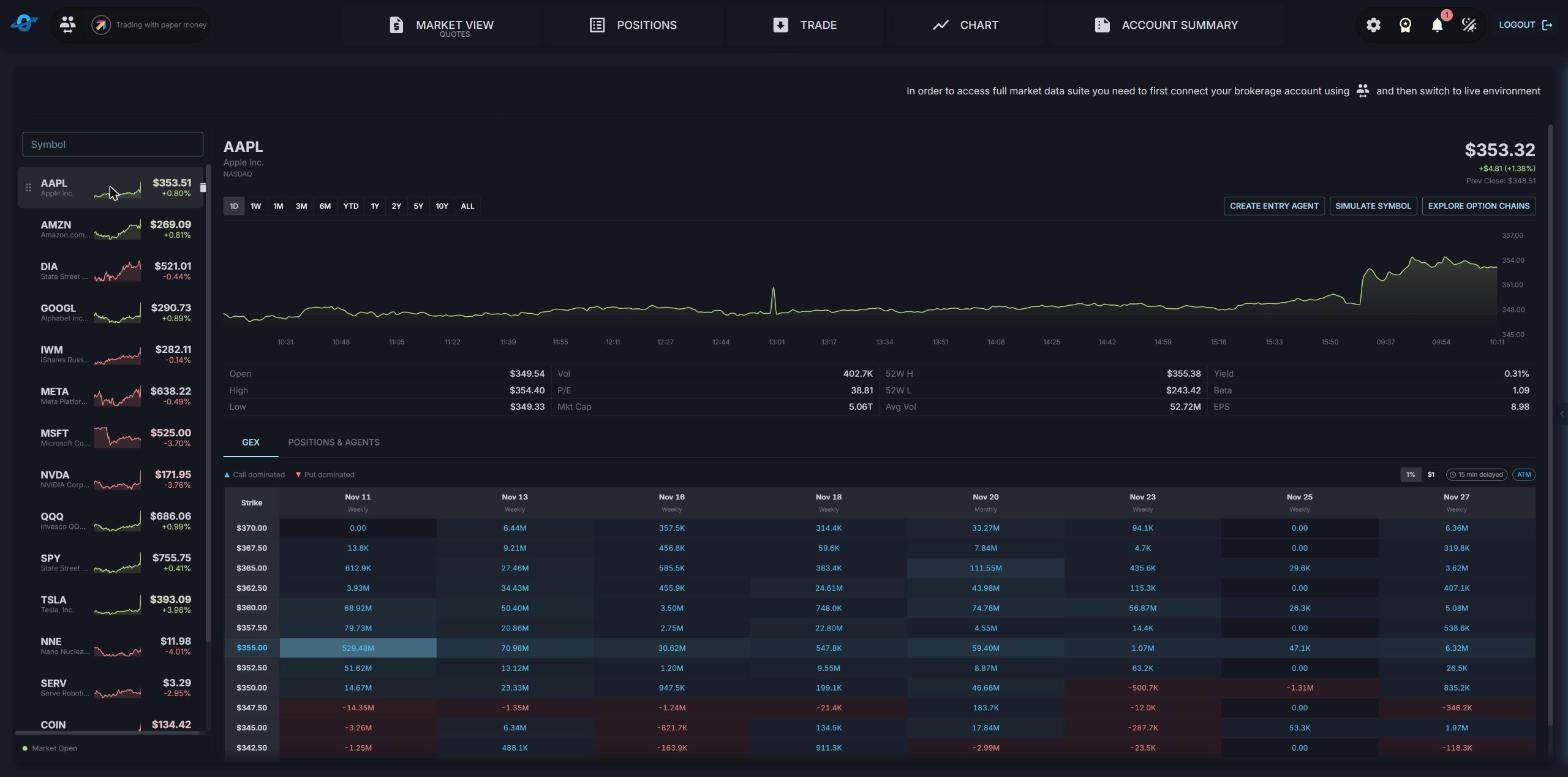
- 1Account switcher. The person icon picks your account. The label next to it tells you which one you are in: Trading with paper money means practice mode.
- 2Main tabs. The direct way to move around the app: Market View, Positions, Trade, Chart and Account Summary. Market View and Trade open a small menu.
- 3Header icons. Settings (gear), Upgrade subscription (badge), Notifications (bell) and Theme options.
- 4Watchlist. Type a ticker in the Symbol box, or click one to load it on the right.
- 5Shortcuts. Create Entry Agent, Simulate Symbol and Explore Option Chains, all pre-filled with this stock.
- 6GEX table (gamma exposure). Shows where the options market is most heavily positioned, by strike and expiry. Blue cells lean call-heavy, red cells put-heavy. Why it matters: large blue levels often act like a magnet or a ceiling, because dealers hedging those options tend to slow the stock down near them. Large red levels can do the opposite and speed a move up once price breaks through. Use it to spot likely support and resistance, not as a buy or sell signal on its own. The second tab shows your positions and agents on this stock.
Where everything lives
| Tab | What you do there | Chapter |
|---|---|---|
| Market View → Quotes | Look up a stock, see its stats and gamma exposure | 09 |
| Market View → Alerts | Get pinged when a price level is hit | 09 |
| Positions | Your view of open and pending trades, along with active and pending agents (called APM in the app) | 04 |
| Trade → Agentic Trading | The 5-step Agent Wizard that builds an agent | 03 |
| Trade → Option Chains / Simulate | Analyze contracts, see the risk, reward and payoff, and place orders now | 07 |
| Trade → Trade Ideas | Ready-made agents from the OptionsRobot team | 08 |
| Trade → Trade Settings | Your defaults for every order and agent | 11 |
| Chart | Full charting with support and resistance levels | 09 |
| Account Summary | Balances, buying power, every contract and order | 10 |
Paper first, live later
Practice with play money until you trust your agents.
- Paper uses simulated money and real market prices. Nothing reaches your broker.
- Paper fills and fill prices are not always in line with the live market. A paper order can fill faster, or at a better price, than the same order would in a live account.
- Live sends real orders to your connected brokerage account.
- Always check the label at the top left before you click Execute, Place Order or Create Agent.
- Look at the top-left corner. If it says Trading with paper money, you are practicing.
- Build and test in paper. Every step in this manual works in paper mode, so you can practice each one safely.
- Connect your broker when ready. Click the person icon (Select account) to connect a brokerage account and switch to live. Some market data, such as the extended stats on the Quotes page, only unlocks once a broker is connected and live is selected.
Quick start: your first agent
About ten minutes. You will build the agent shown in the pictures: buy one SPY call if SPY climbs above $775, then manage it automatically.
Every trade plan has two kinds of agent. The entry agent waits for your trigger and opens the trade. The management agents look after the trade once it is open.
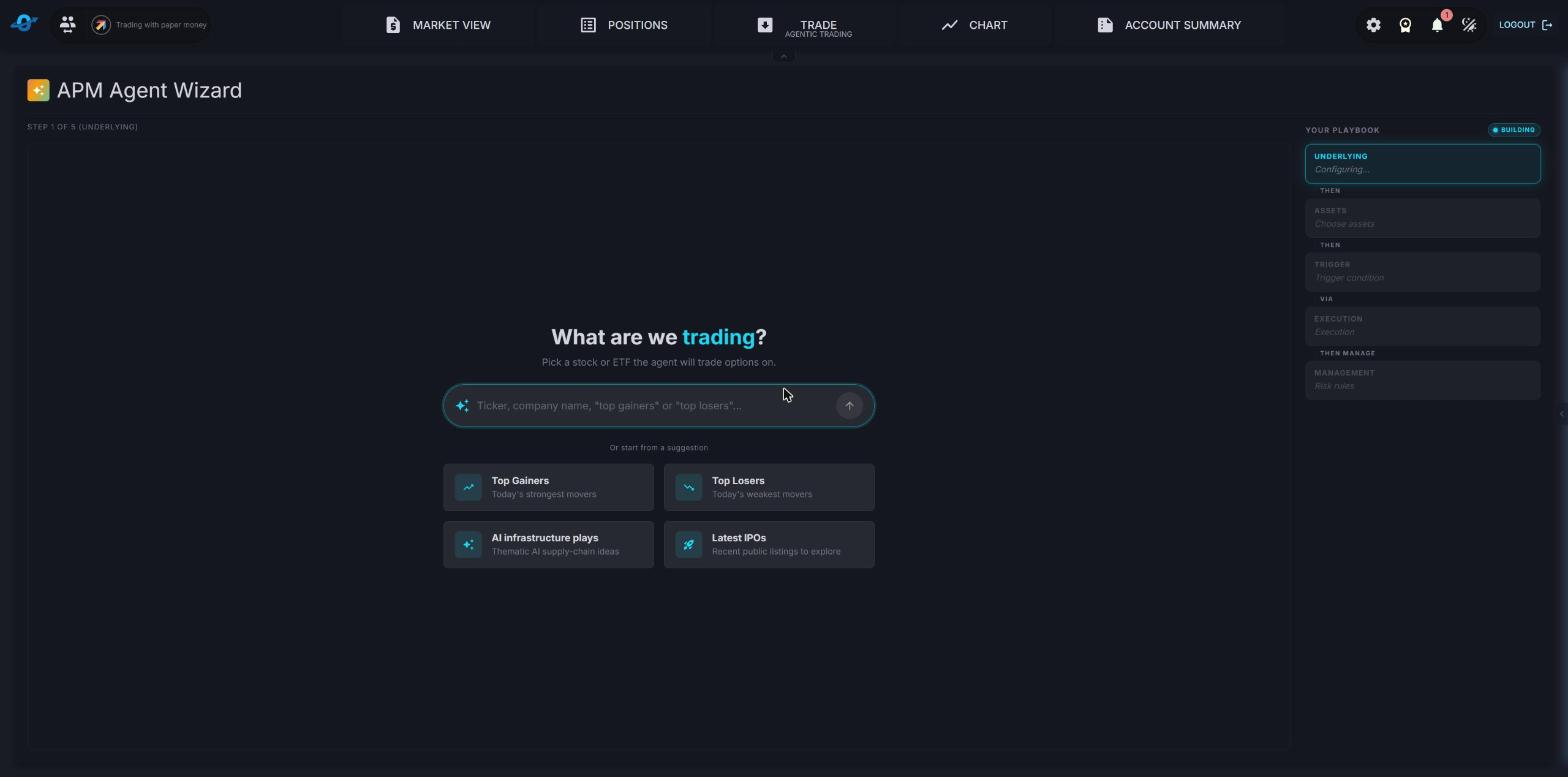
- 1Search box. Type a ticker or company name. You can also type phrases such as "top gainers".
- 2Suggestions. Top Gainers, Top Losers, AI infrastructure plays and Latest IPOs.
- 3Your Playbook. A live summary of the agent. It fills in as you finish each of the 5 steps.
Pick the stock. Open Trade → Agentic Trading, type SPY and press Enter. Click the SPY card, then click Open.
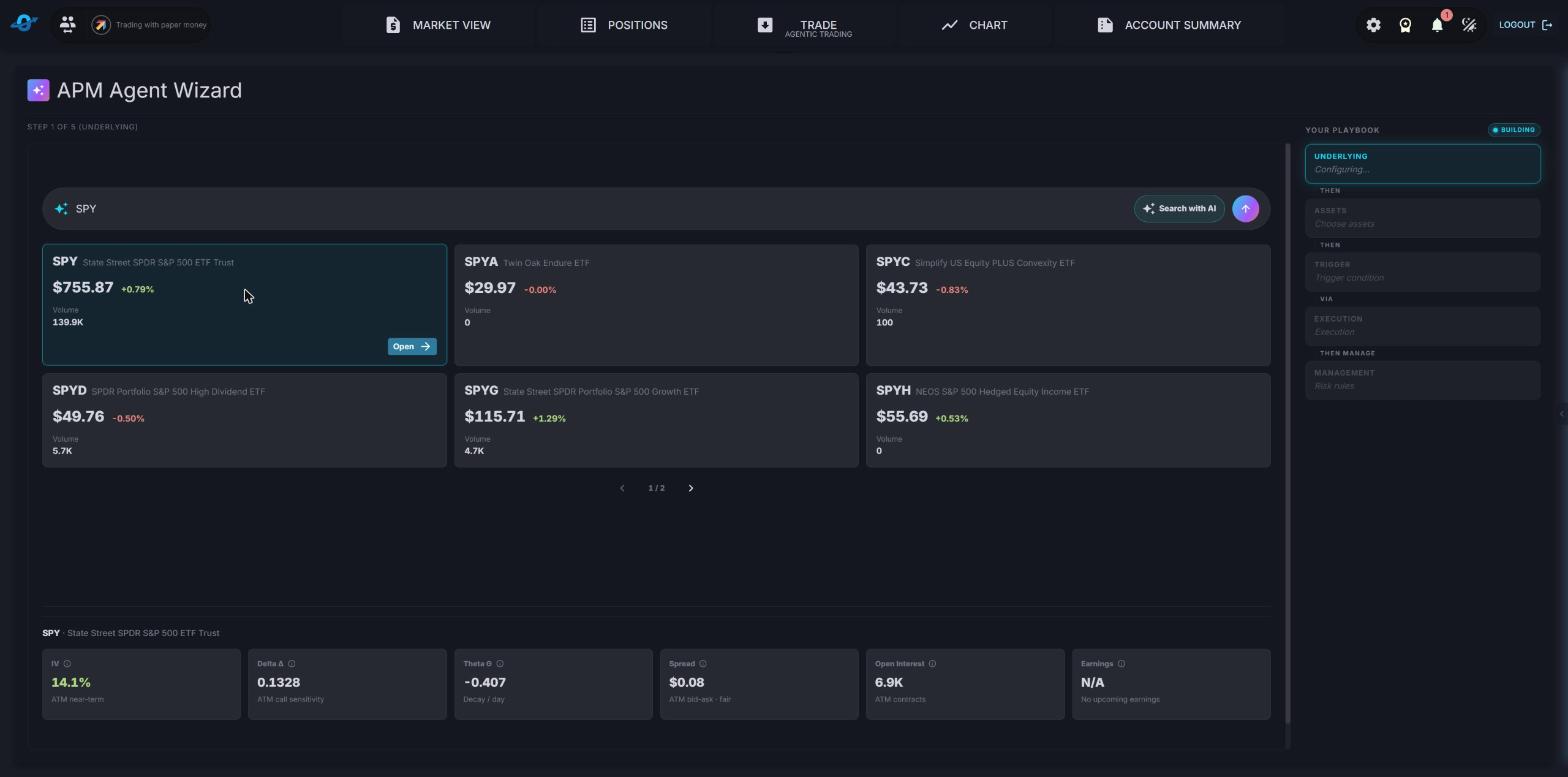
| Tile | What the app's tip says |
|---|---|
| IV | How expensive options are. Above 60%, selling premium tends to fit. Below 30%, buying premium tends to fit. |
| Delta | Near 0.50 is neutral. Higher favours calls, lower favours puts. |
| Theta | Dollars an at-the-money option loses per day from time decay. |
| Spread | The bid-ask gap. Above $0.15, reduce size or skip. $0.05 or tighter is fine for full size. |
| Open Interest | How many contracts exist at that strike. Thin open interest plus a wide spread is a hard avoid. |
| Earnings | Days to the next report. Under 7 days, avoid naked short premium. |
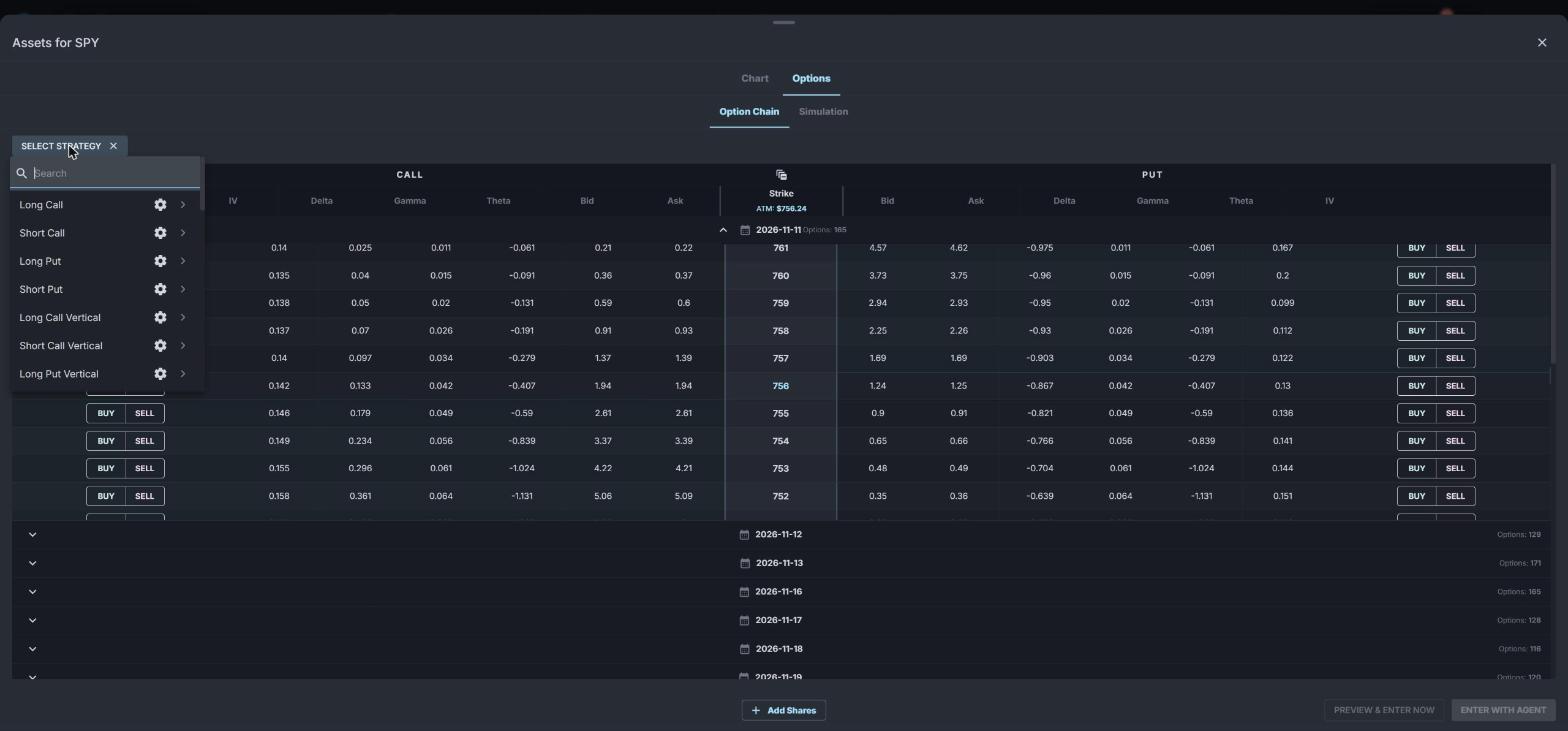
Pick the contracts. A panel slides up with two tabs, Chart and Options. Open Options.
- Click Select Strategy and choose one. There are 35, from Long Call to Iron Condor, Calendars, Collars and Covered Calls. Type in the search box to filter the list.
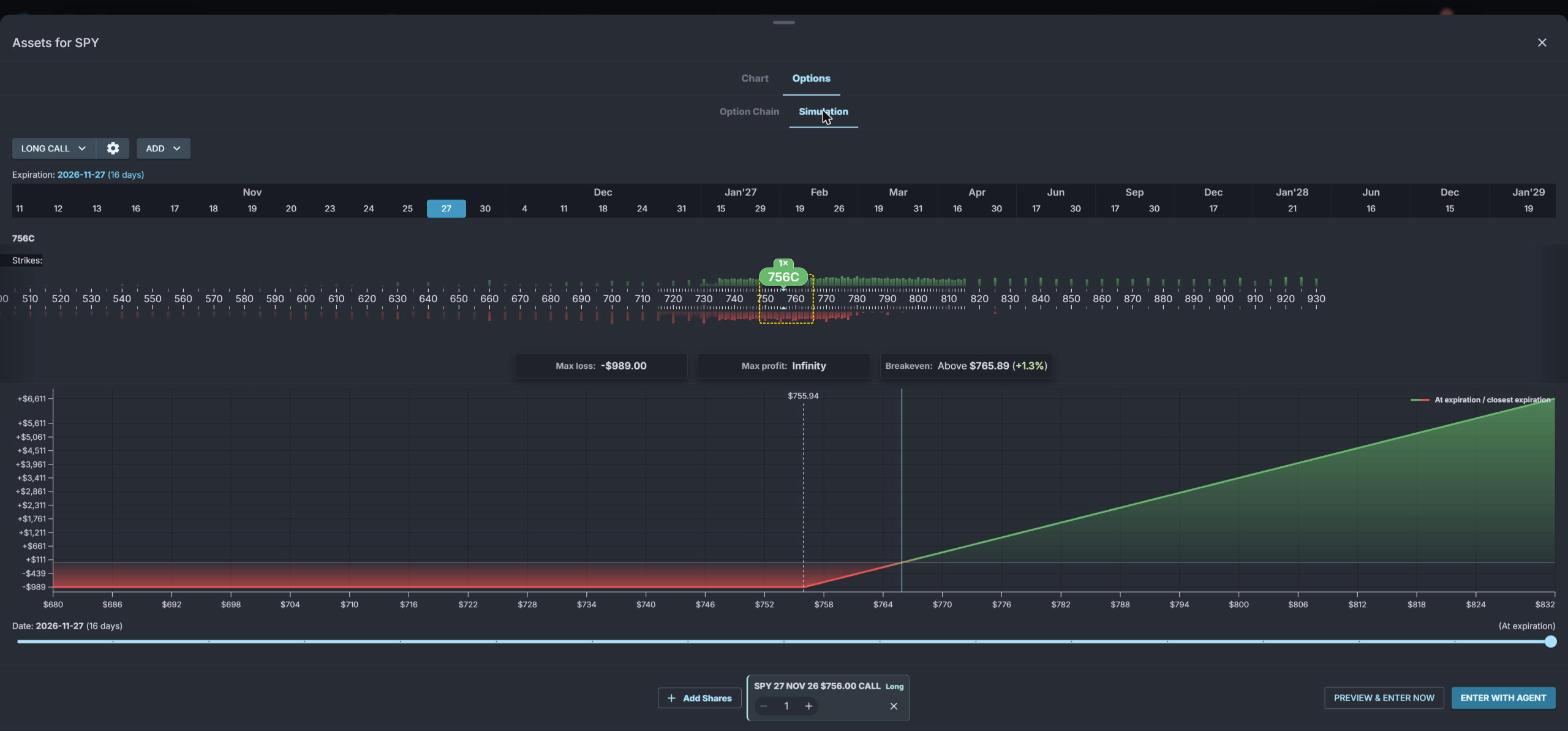
- The app picks a sensible contract for you. Here it chose the SPY 27 Nov 26 $756 call, at the money. Click a different Buy or Sell button to change it.
- Open the Simulation tab to see the payoff: max loss, max profit and breakeven.
- Use the − / + on the ticket at the bottom to set the quantity, then click Enter With Agent.
Decide when to enter. Choose a trigger source, then set the level.
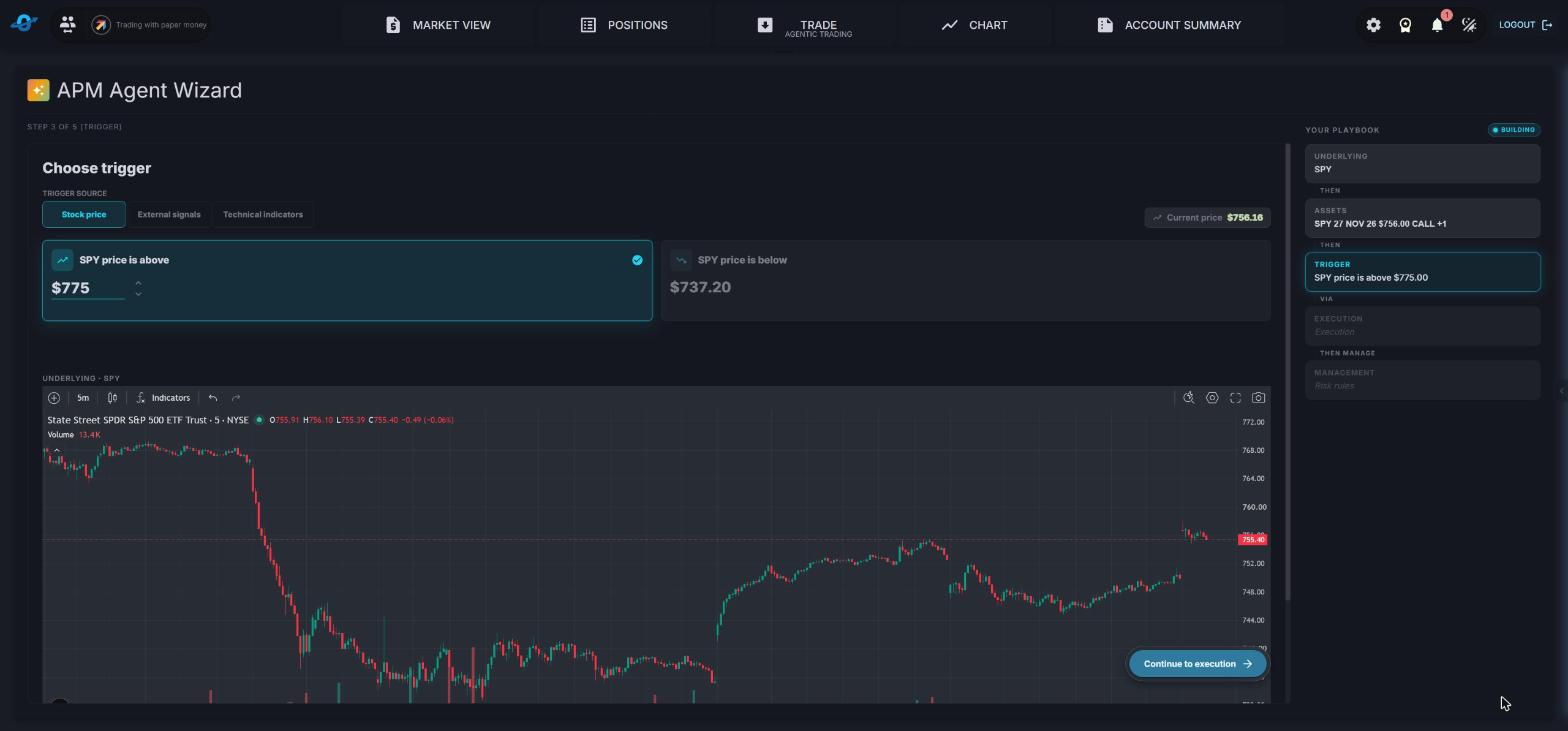
| Trigger source | Options |
|---|---|
| Stock price | Price is above, or price is below, a level you type |
| External signals | VIX is above or below a level, with a live VIX reading shown |
| Technical indicators | RSI, MACD, SMA, EMA or Bollinger Bands, with period and interval settings |
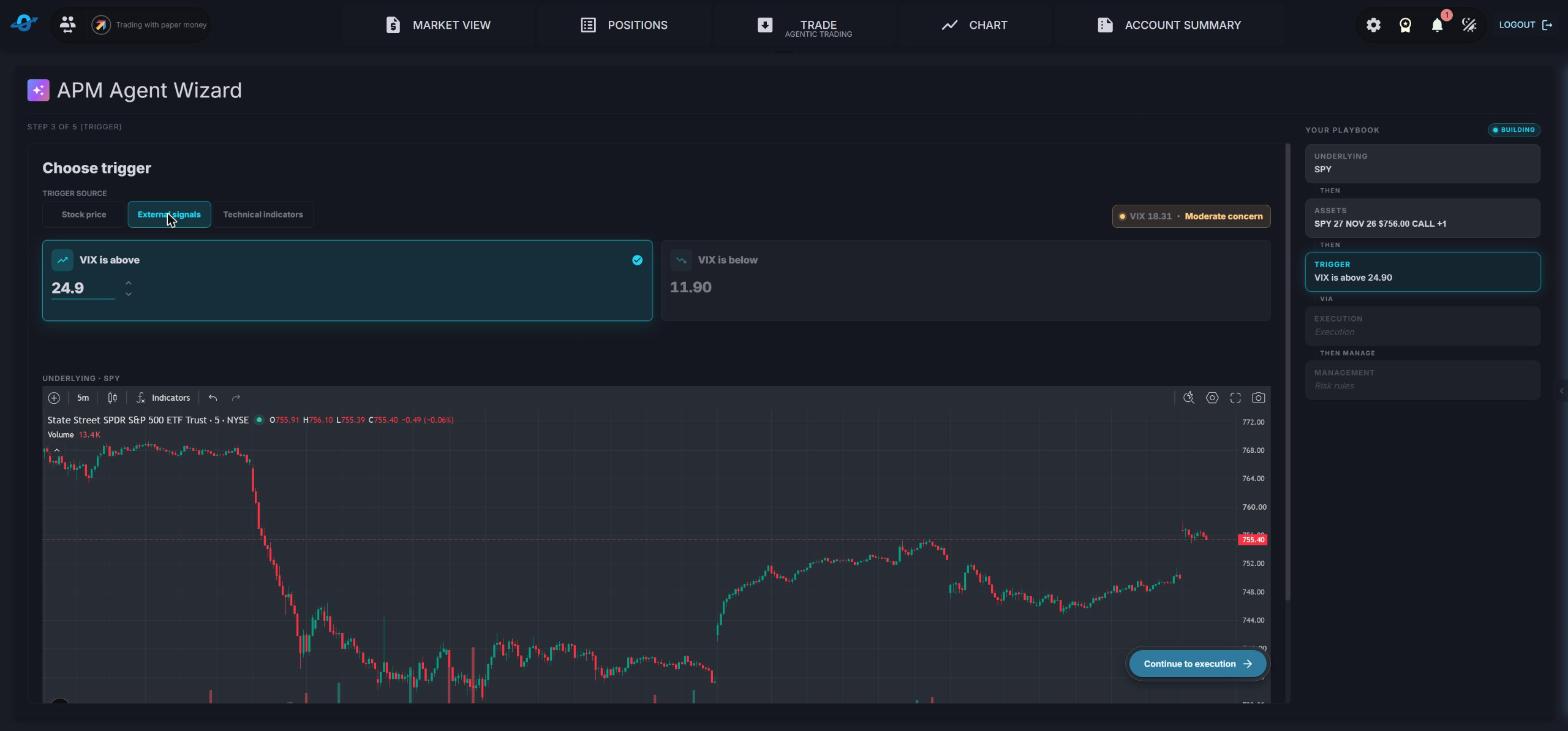
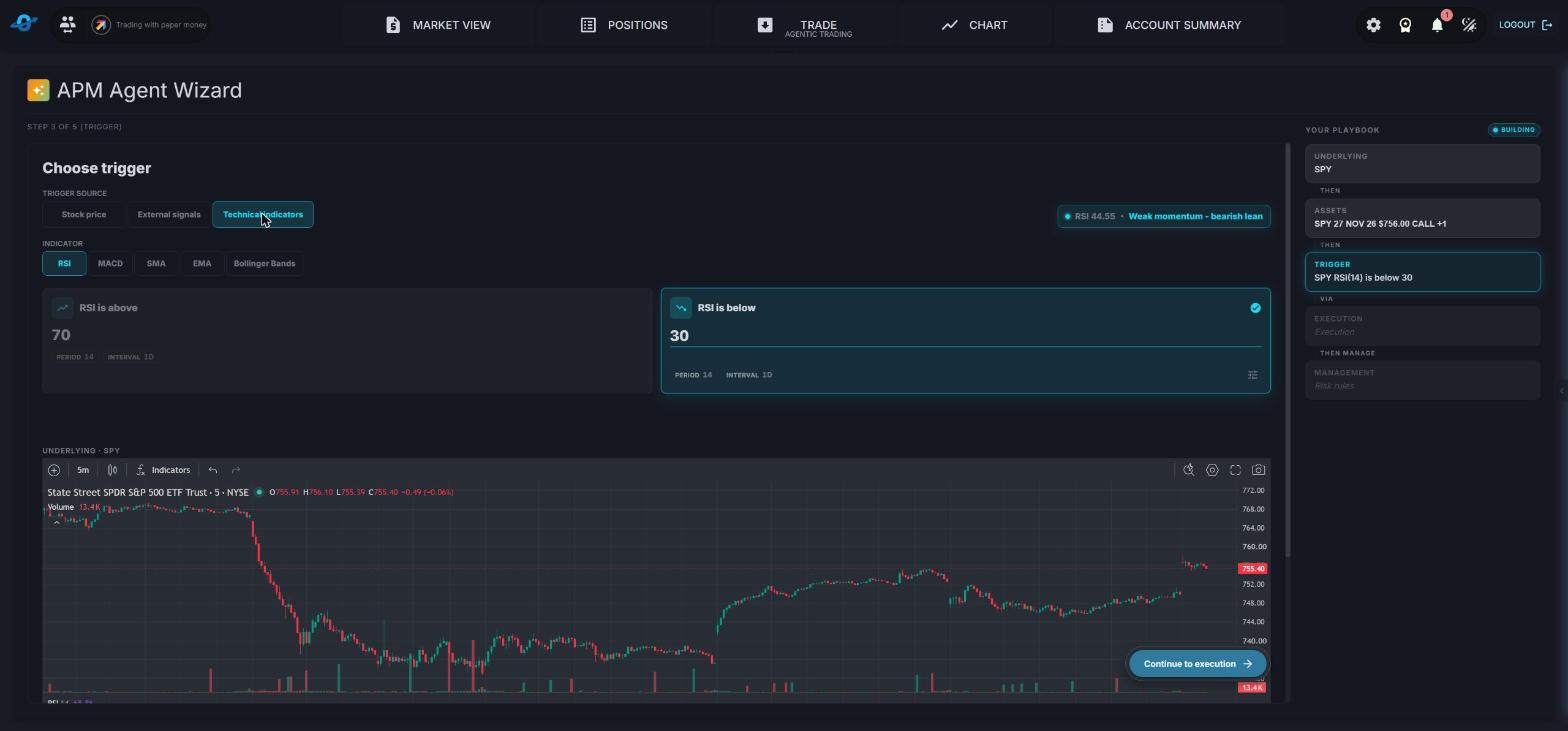
Click Continue to execution.
Decide how the order is placed.
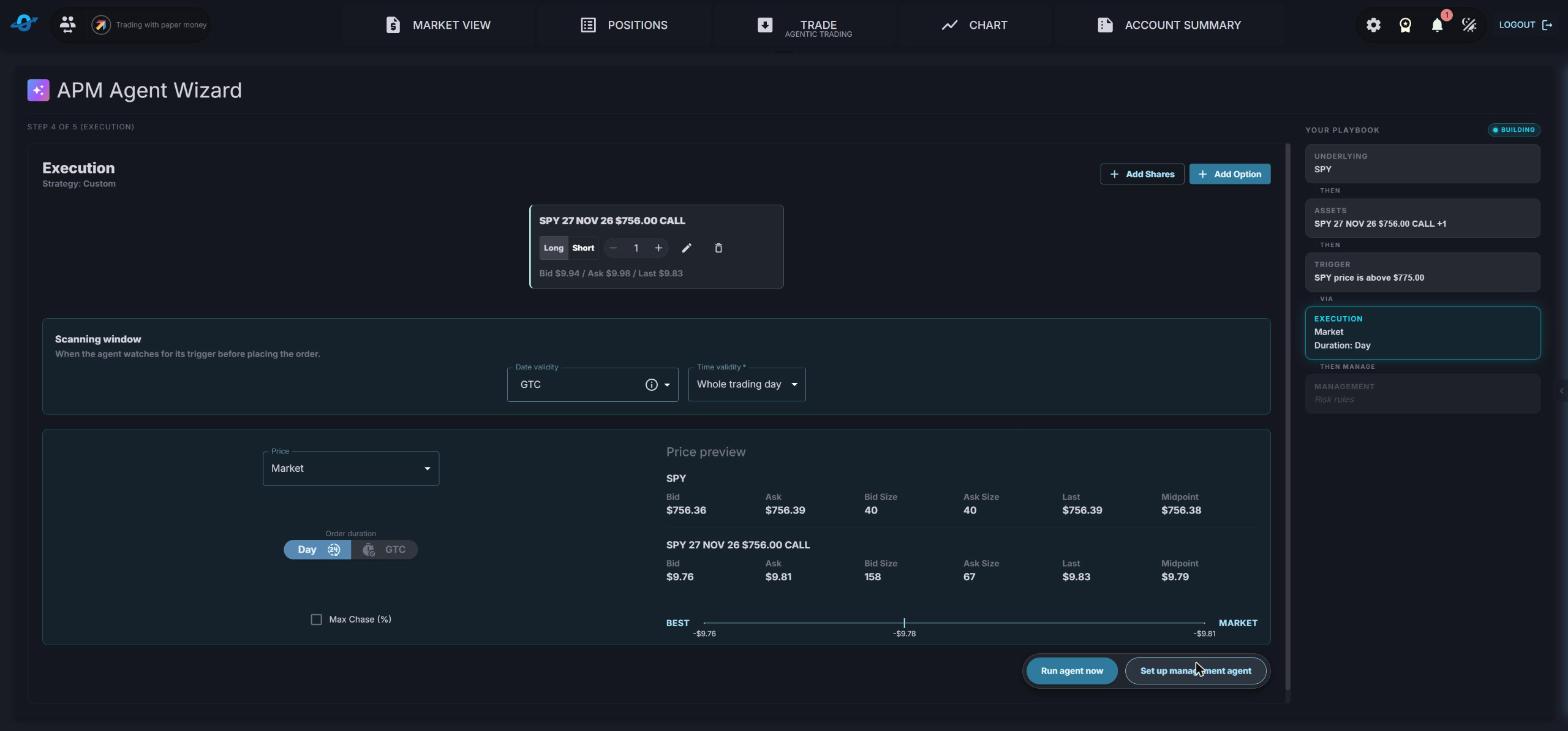
- Scanning window. How long the agent keeps watching. GTC keeps watching until cancelled. Time validity limits it to certain hours, or the whole trading day.
- Price. Midpoint, Market or Custom, plus three smart presets: Default, Quick and Slow (see chapter 05).
- Order duration. Day or GTC once the order is sent.
- Max Chase (%). Optional cap on how far the agent may move its price to get filled.
- Price preview. Live bid, ask and midpoint for the stock and the option.
Click Set up management agent. (Run agent now also works if you want to skip management for now.)
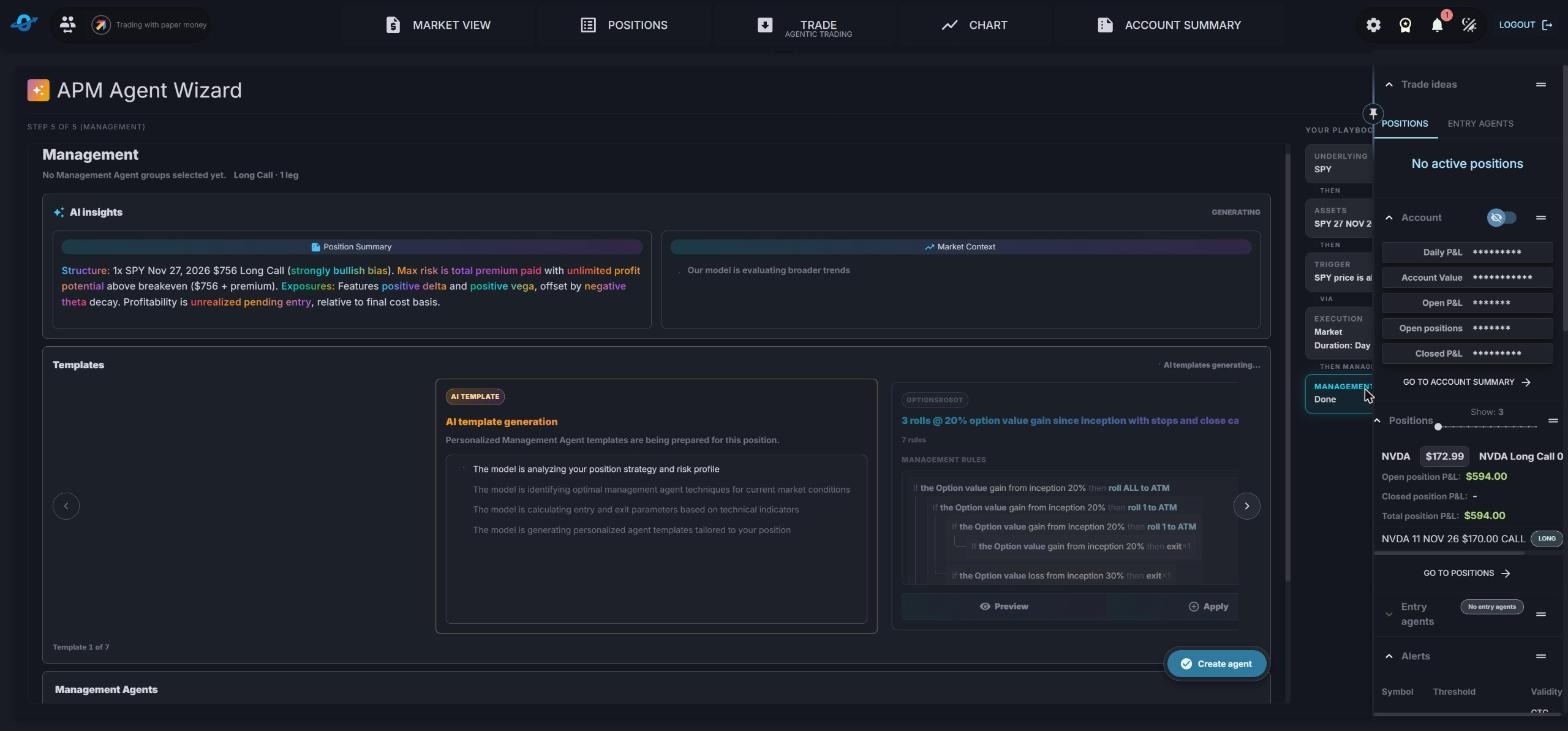
Decide how the trade is managed. The AI writes a short summary of your position and the market, then offers templates.
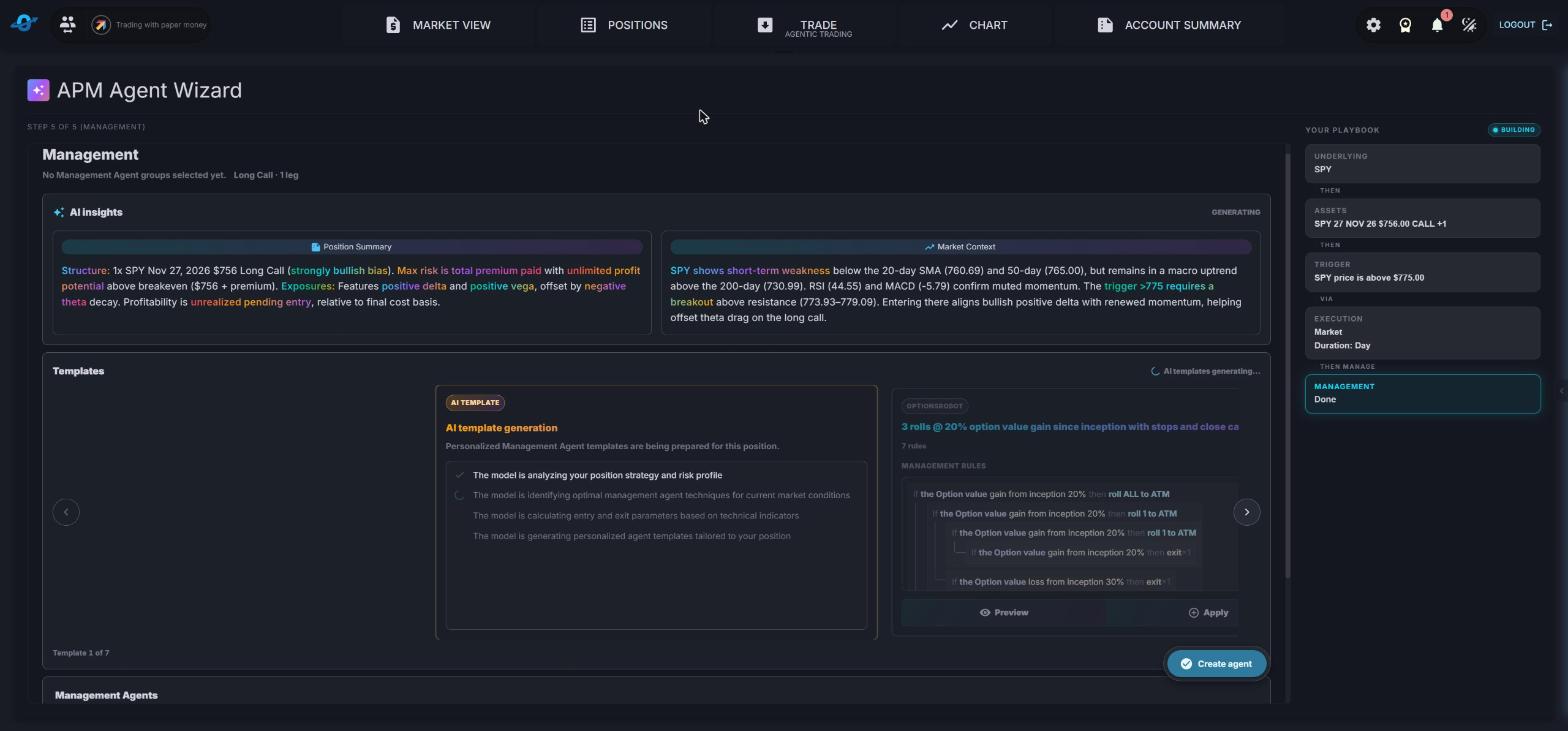
- Browse templates with the arrows. Each card lists its rules. Preview shows them as a diagram.
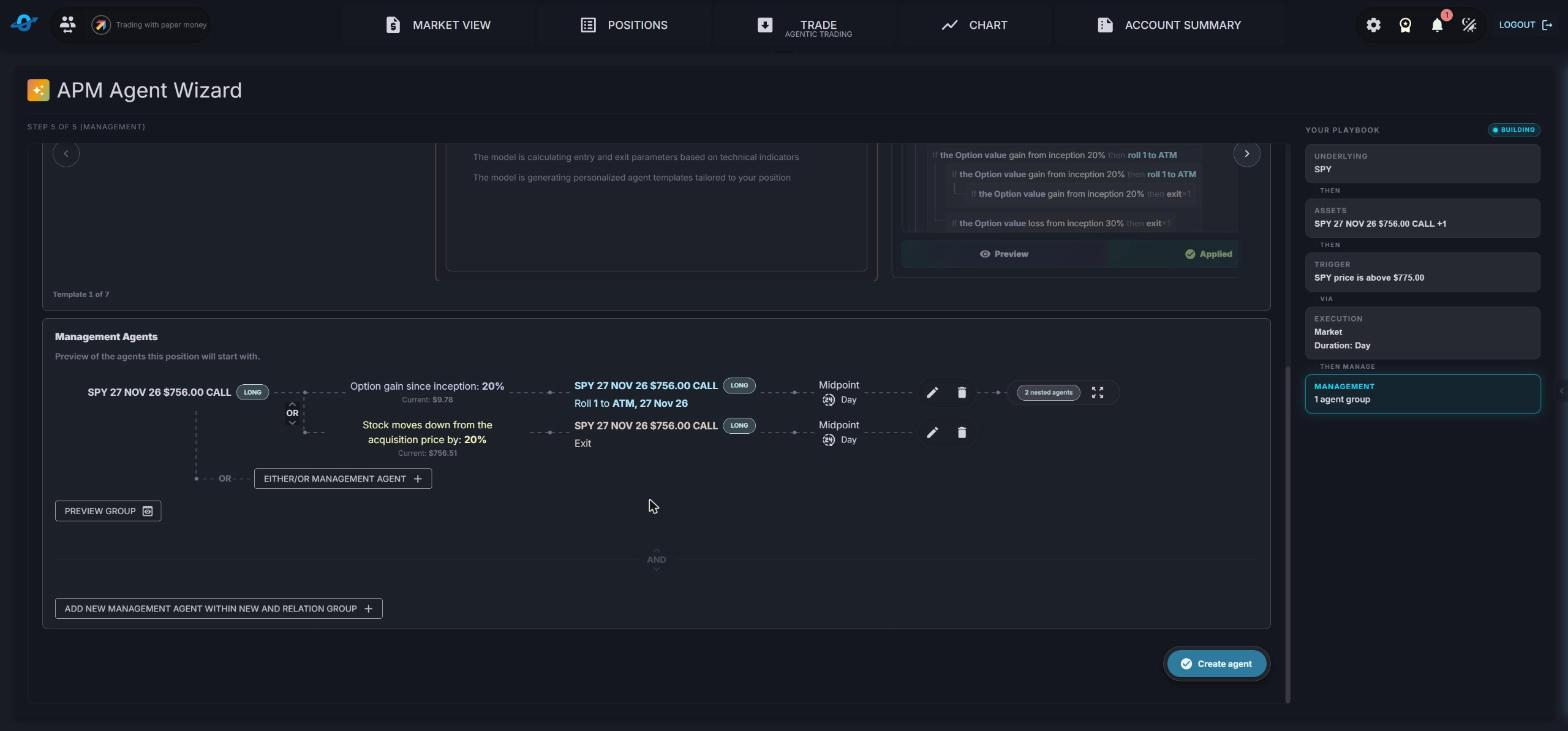
- Click Apply on the one you like. This example uses 3 rolls @ 20% option value gain since inception with stops and close call.
- Scroll down to check the rule tree under Management Agents.
- Click Create agent. Done.
What you get
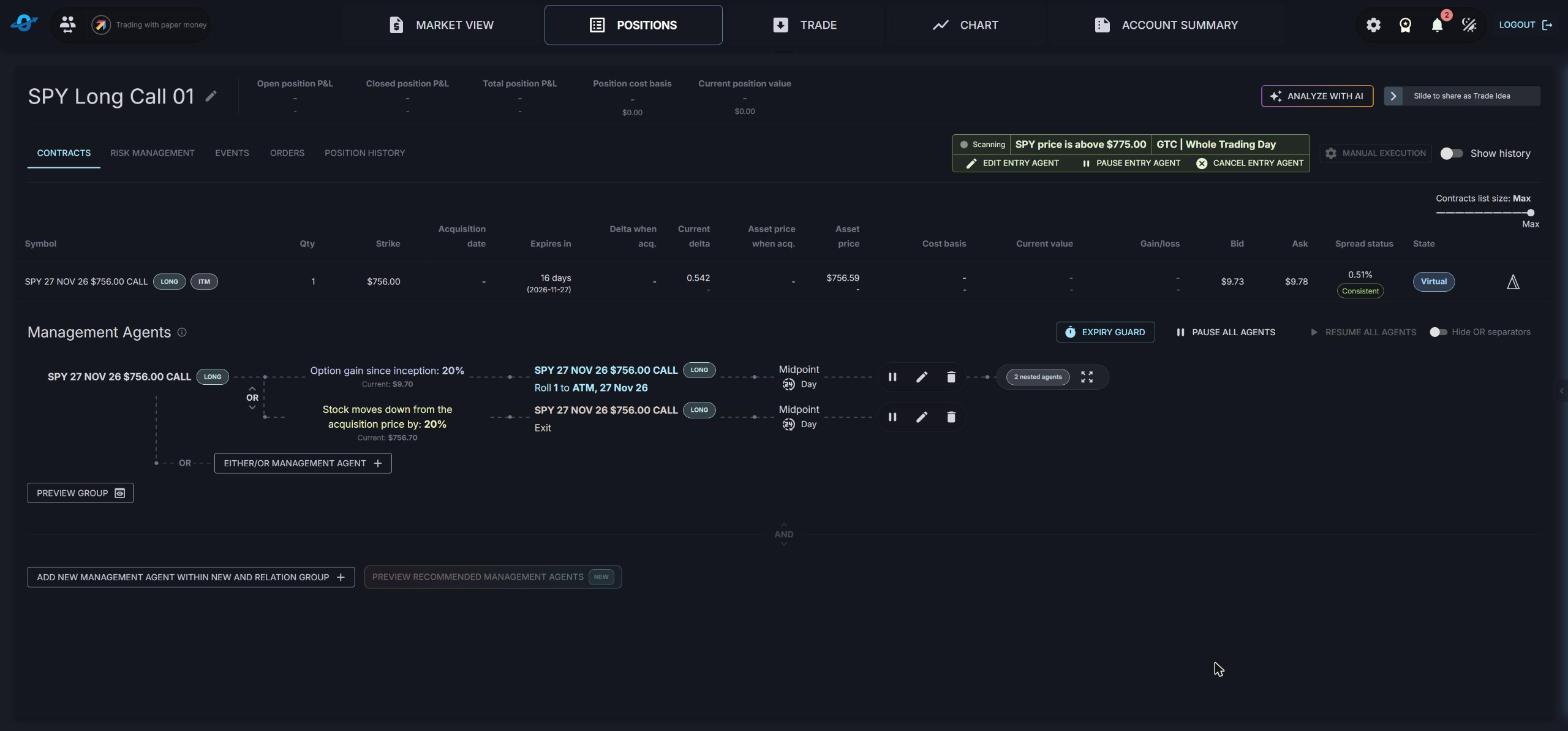
- 1Entry agent status. "Scanning" while it waits for SPY > $775. Edit, Pause or Cancel it here.
- 2Position tabs. Contracts, Risk Management, Events, Orders, Position History.
- 3State. Virtual means "planned, not executed yet". It becomes Active once it is partially or completely filled (transacted).
- 4Analyze with AI. A plainly worded read on the position.
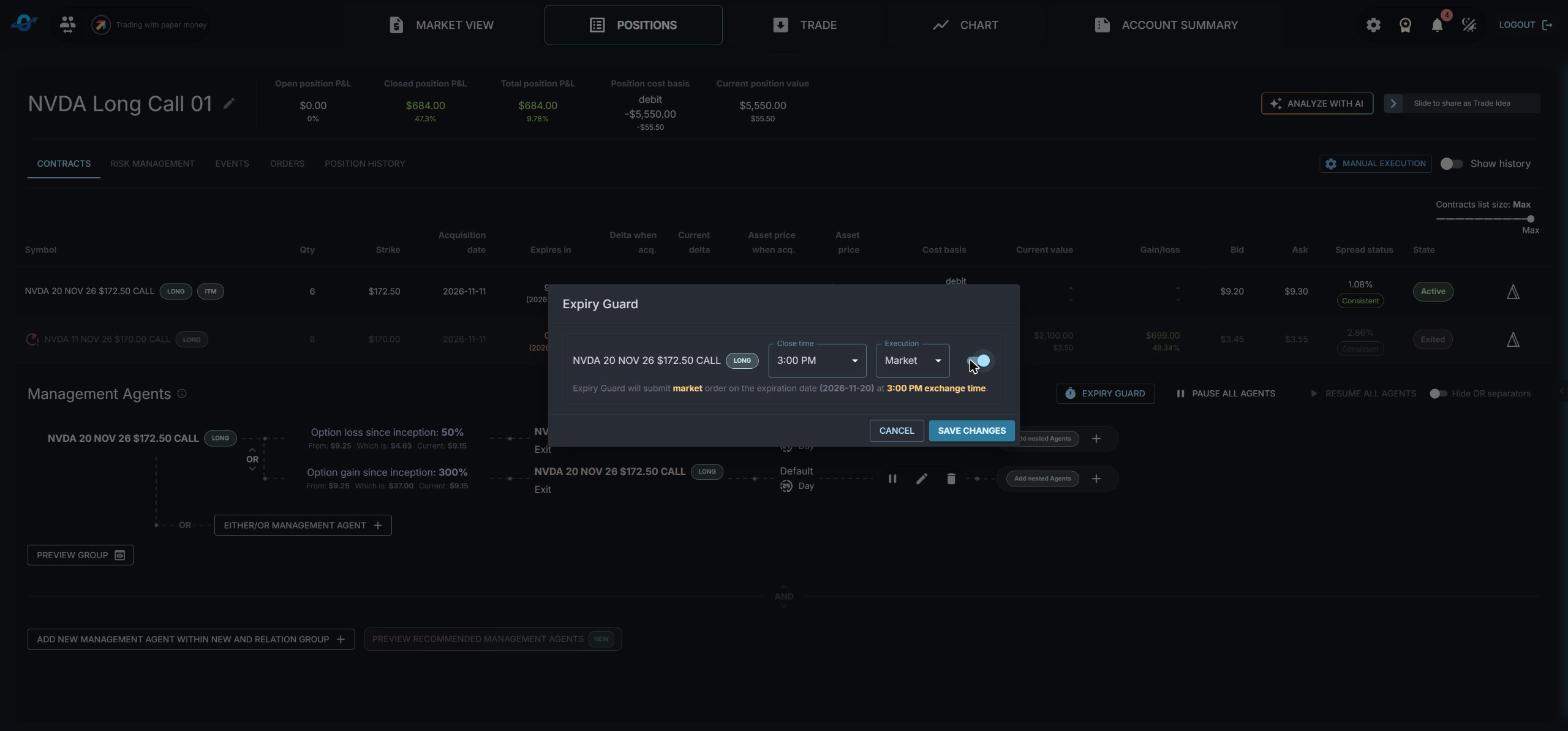
- 5Expiry Guard. Auto-close on expiration day (chapter 05).
Your positions board
Every open trade and every waiting agent on one screen.
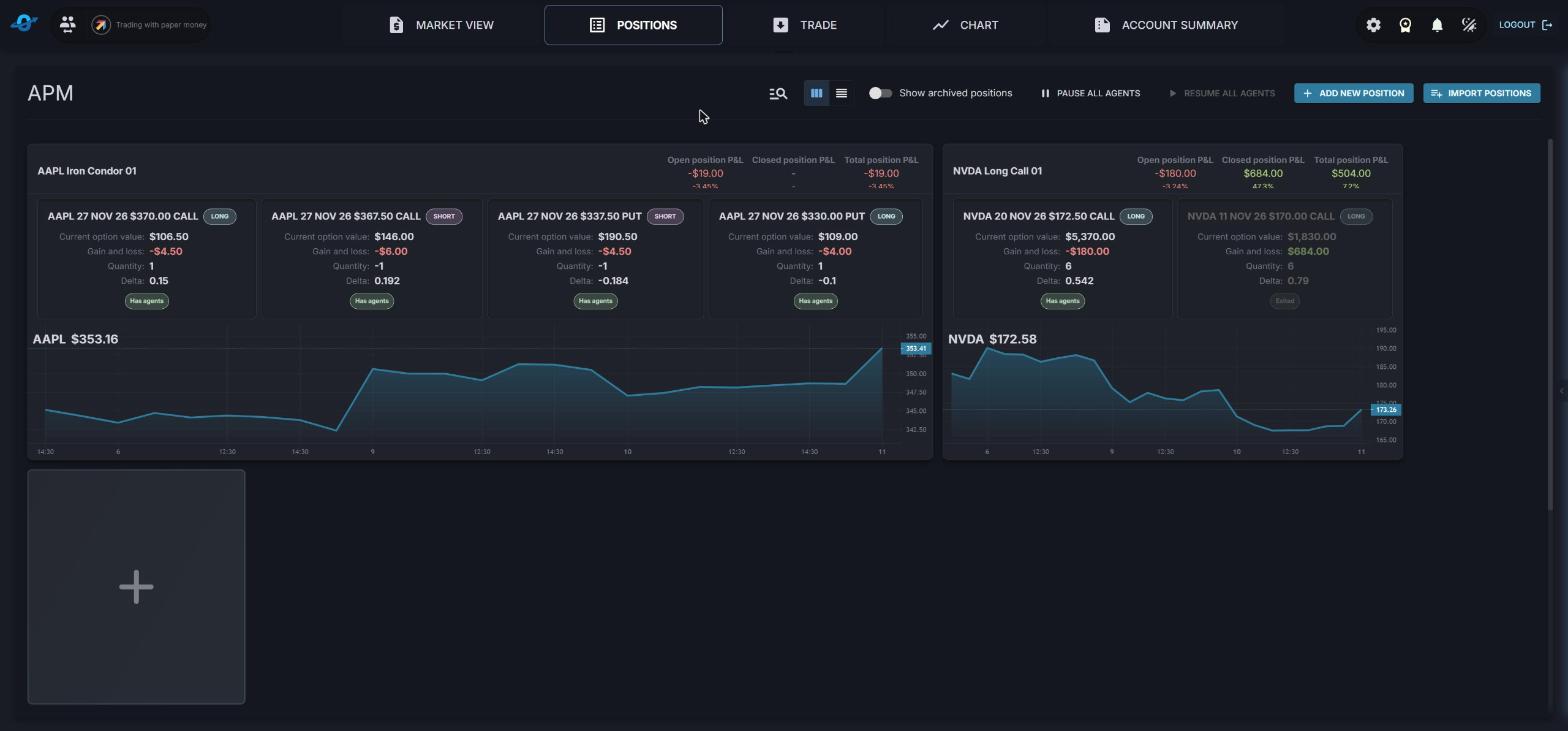
| Control | What it does |
|---|---|
| Card / list icons | Switch views: select cards or a compact table |
| Search icon | Filter positions |
| Show archived positions | Bring back closed ones |
| Pause all agents / Resume all agents | One switch to freeze or restart every agent |
| Add new position | Opens the option chain to build a trade |
| Import positions | Pulls in positions currently at your broker so agents can manage them according to your instructions (live accounts) |
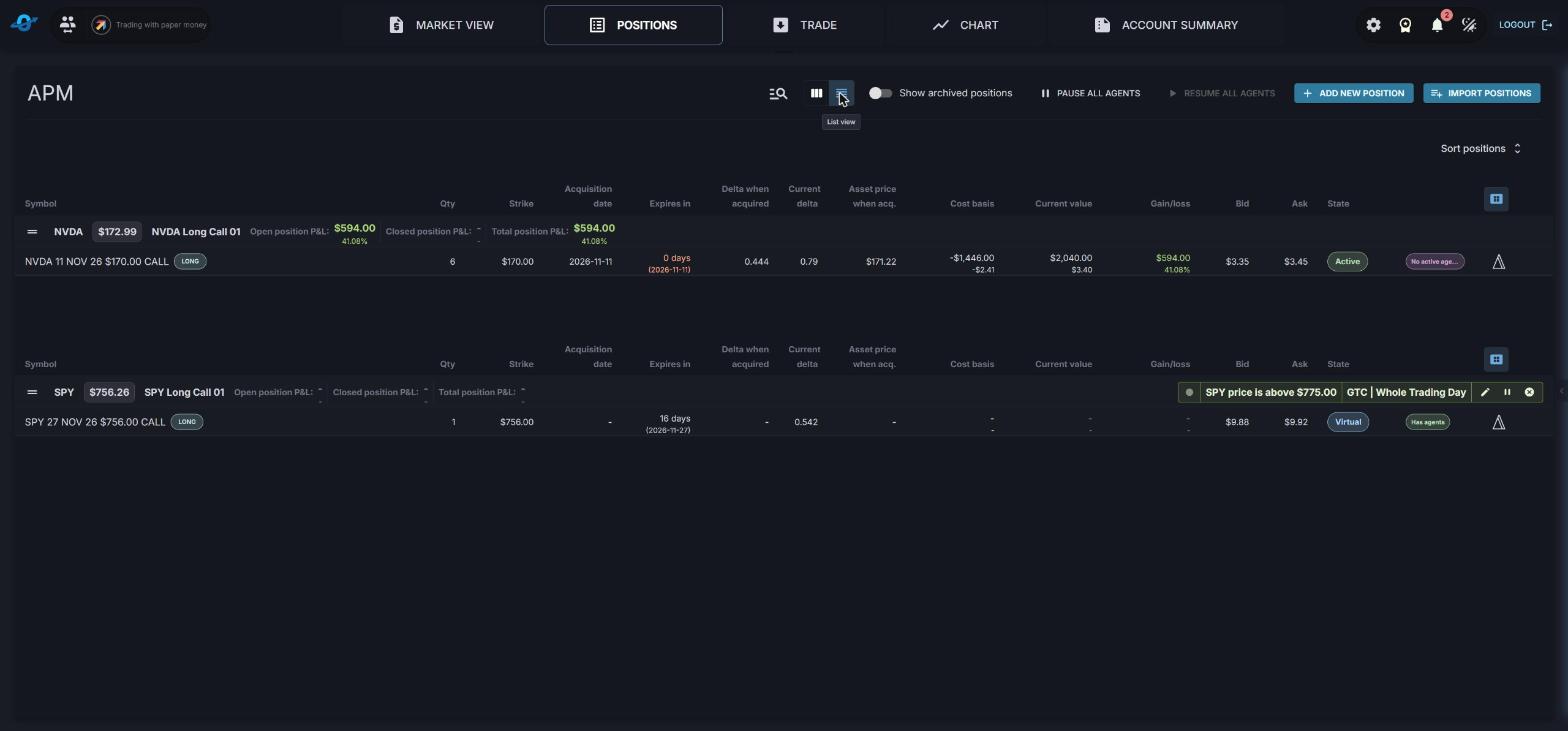
Inside a position
Contracts
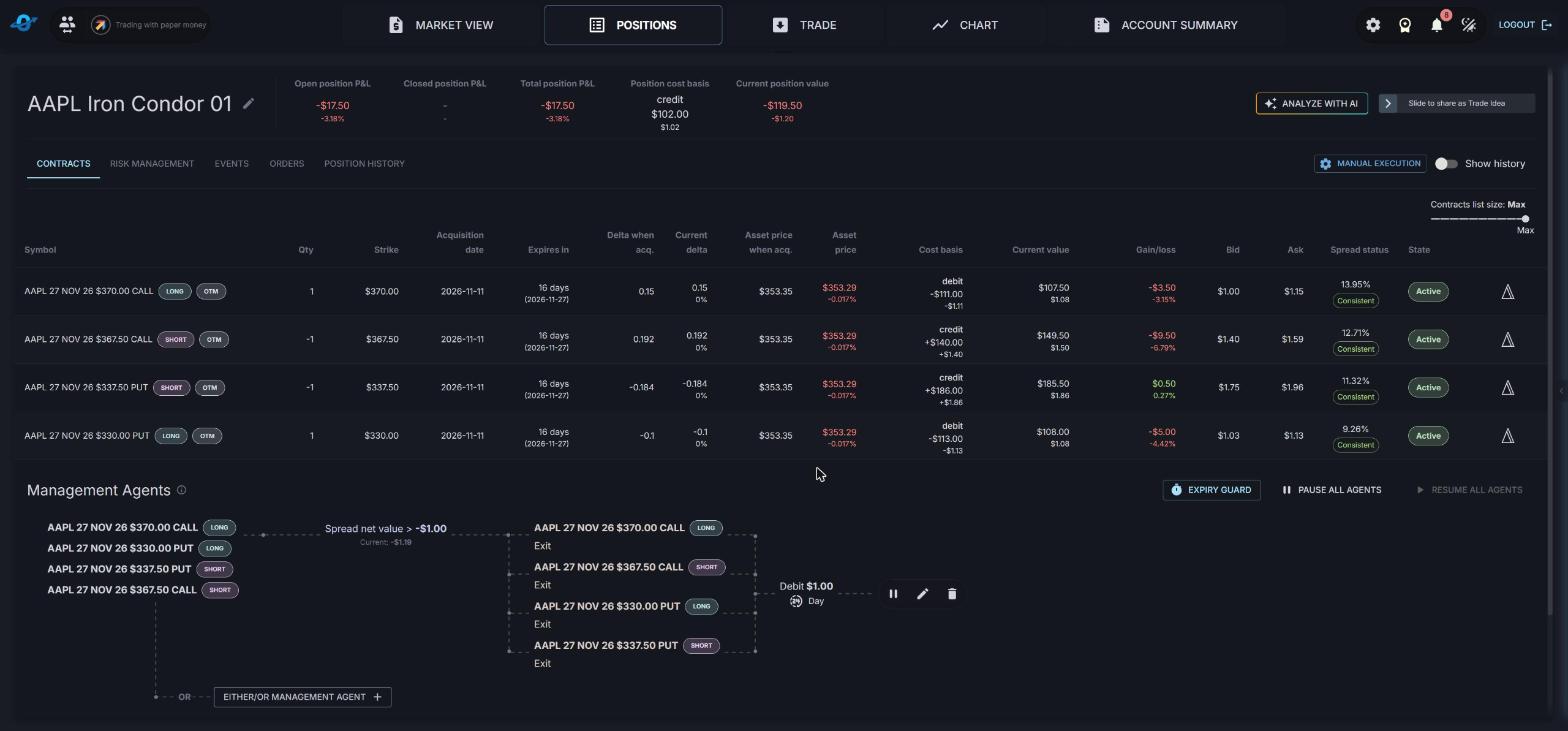
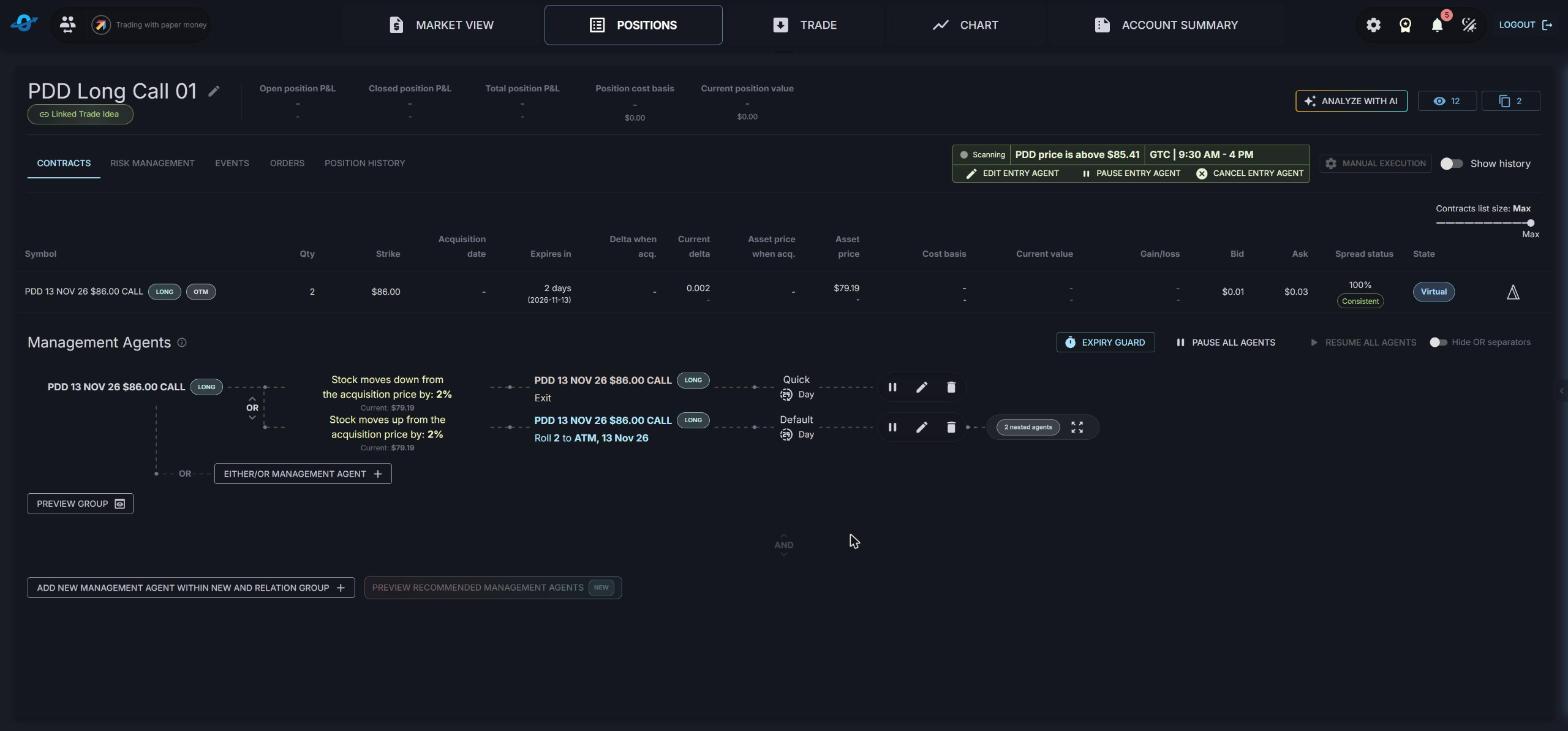
The legs you hold: quantity, strike, expiry, delta, cost basis, gain or loss, bid/ask and a Spread status badge (Consistent or Skewed). Below it sit the management agents attached to this position. Show history also lists contracts you have already closed.
Risk Management
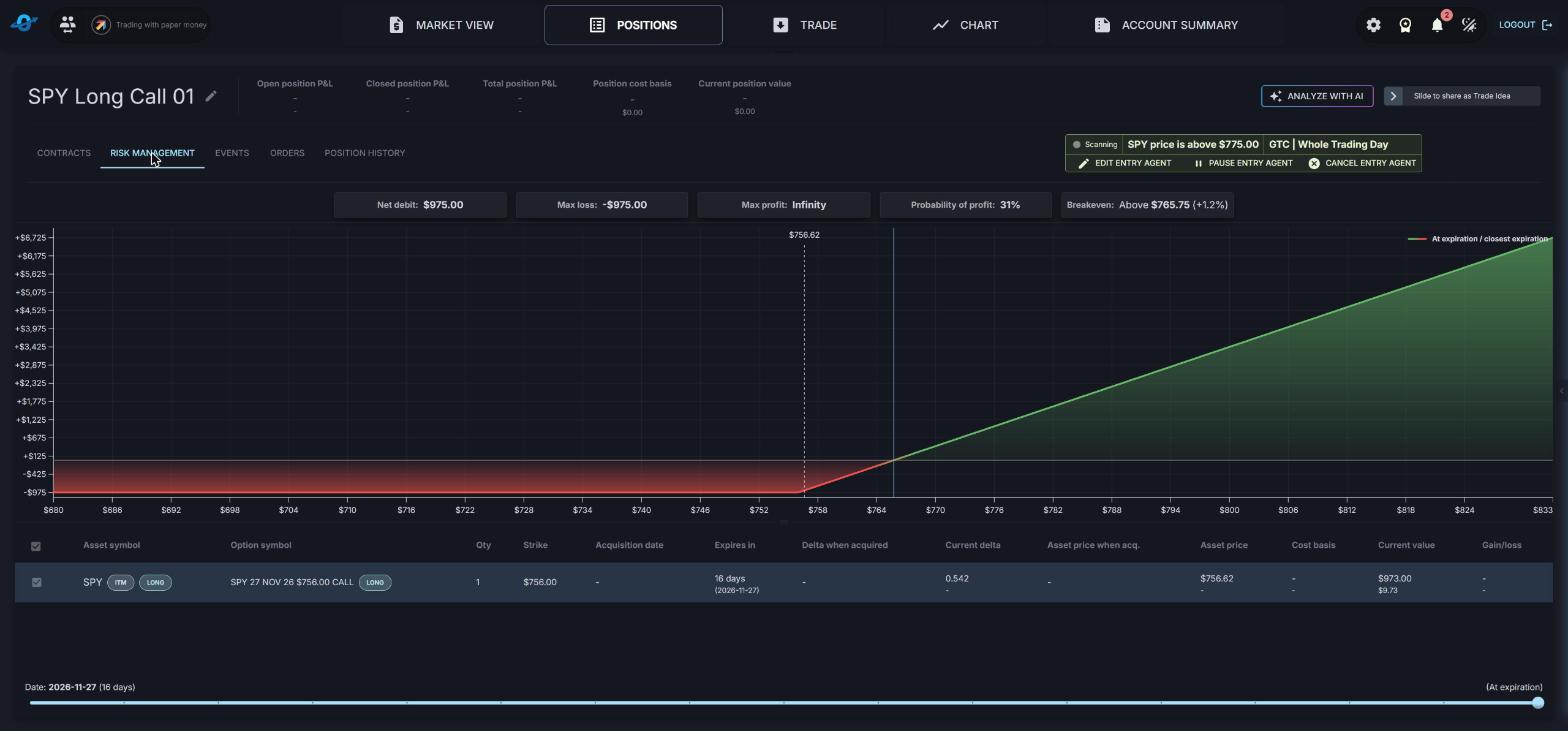
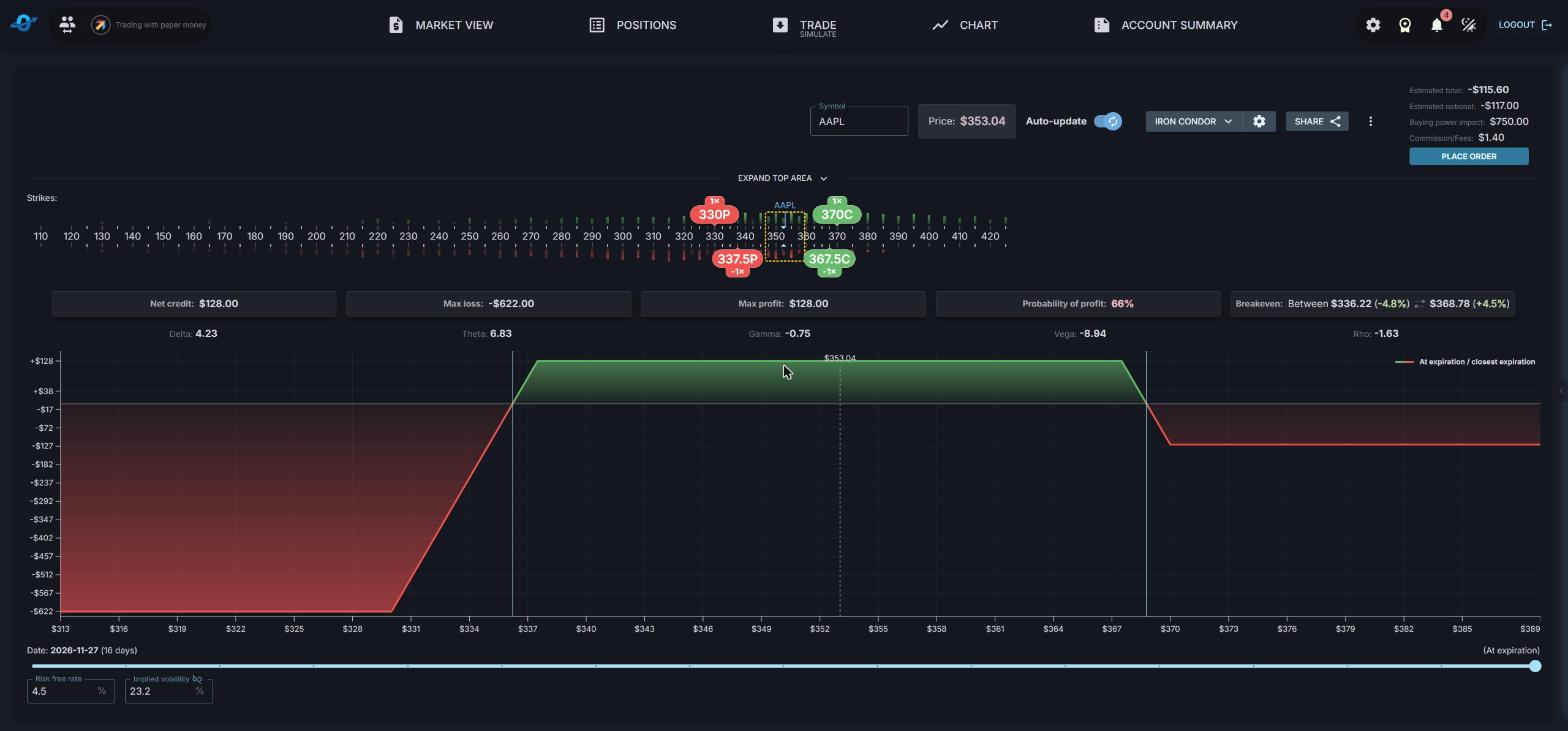
A payoff chart with net debit or credit, max loss, max profit, probability of profit and breakeven. Drag the date slider at the bottom to see the curve on earlier dates.
Events, Orders, Position History
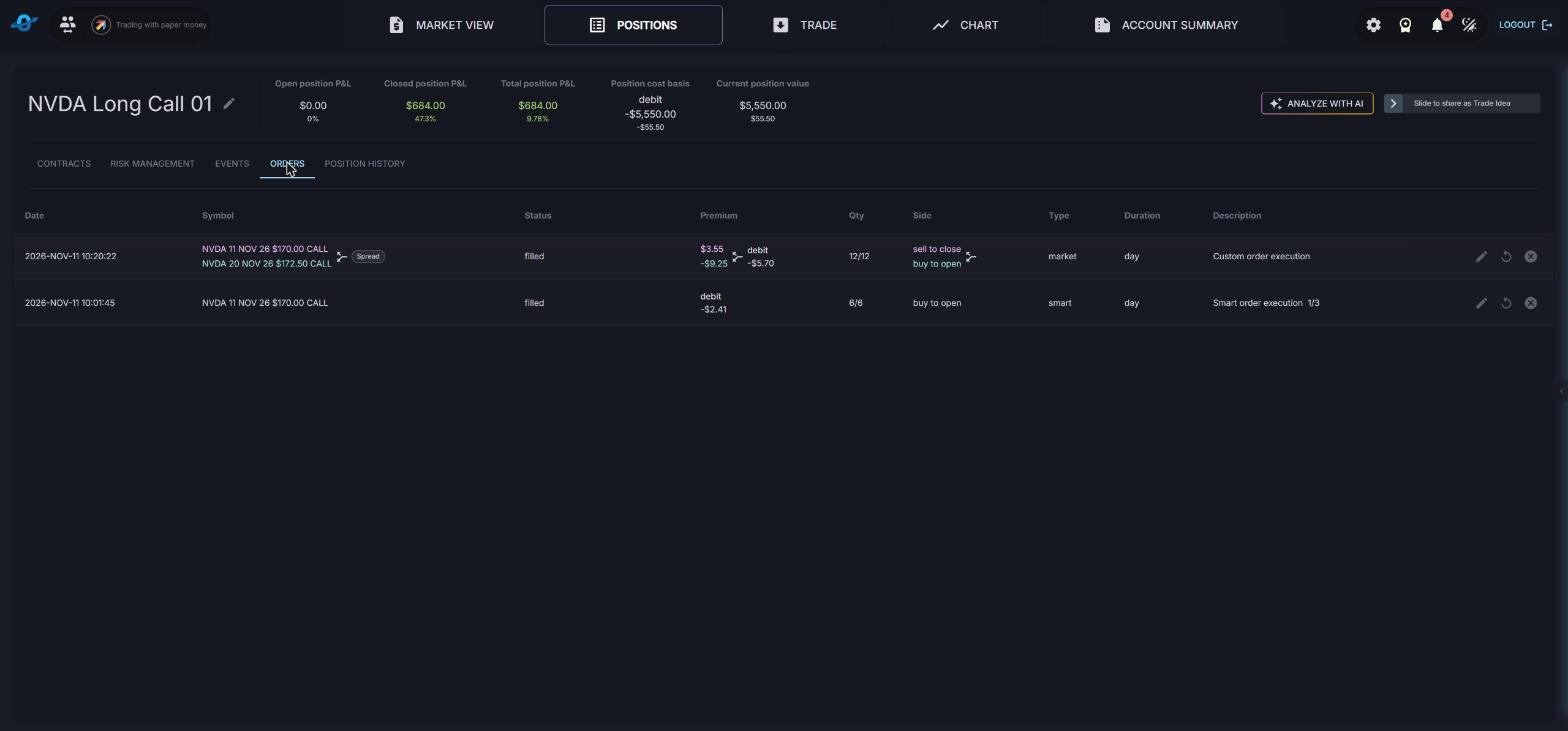
Events is the agent's diary: created, triggered, paused. Orders shows every order with its status, premium and type. Use the pencil, retry or cancel icons on open orders. Position History is the clean list of entries, rolls and exits with prices.
Analyze with AI
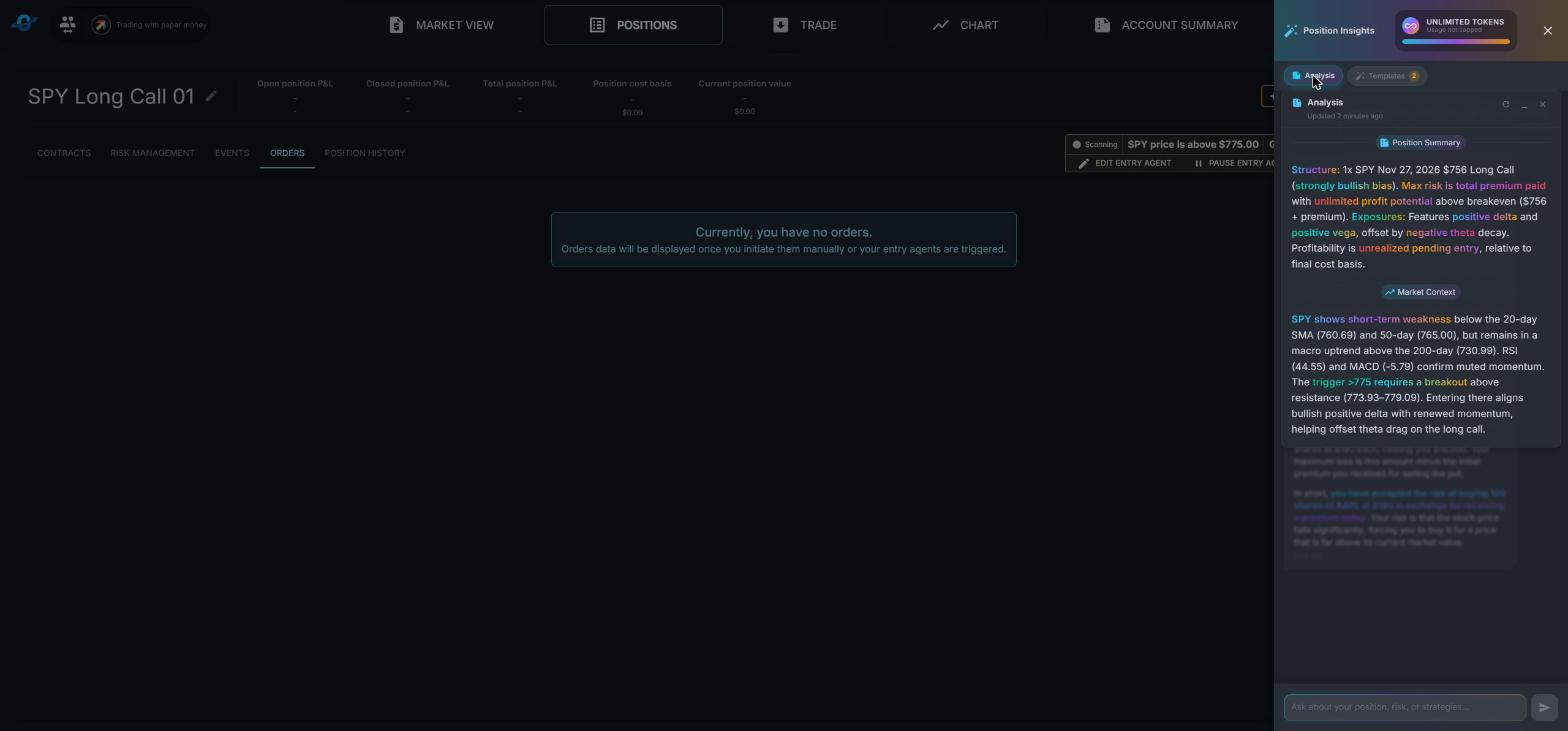
Click Analyze with AI, then the Analysis chip, for a colour-coded summary: structure, max risk, exposures and market context. The Templates chip suggests management templates.
Share as a Trade Idea
The Slide to share as Trade Idea control at the top right publishes the position so other users can view or copy it.
Management agents
The rules that look after a trade once you own it.
IF something happens → THEN do something → AT this price style.
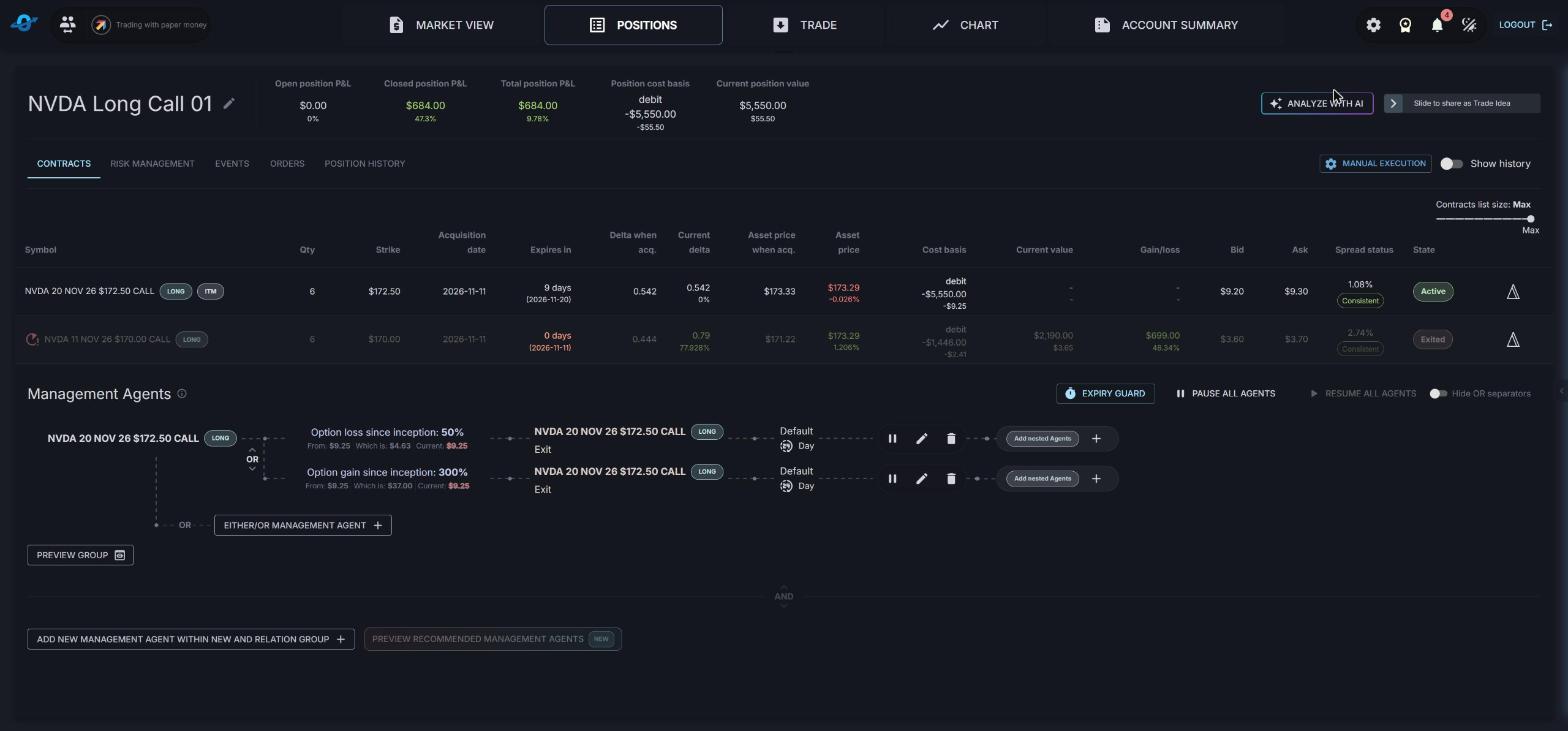
Example: IF the option loses 50% since I bought it → THEN exit → AT the Default smart price.
Fastest way: use a template
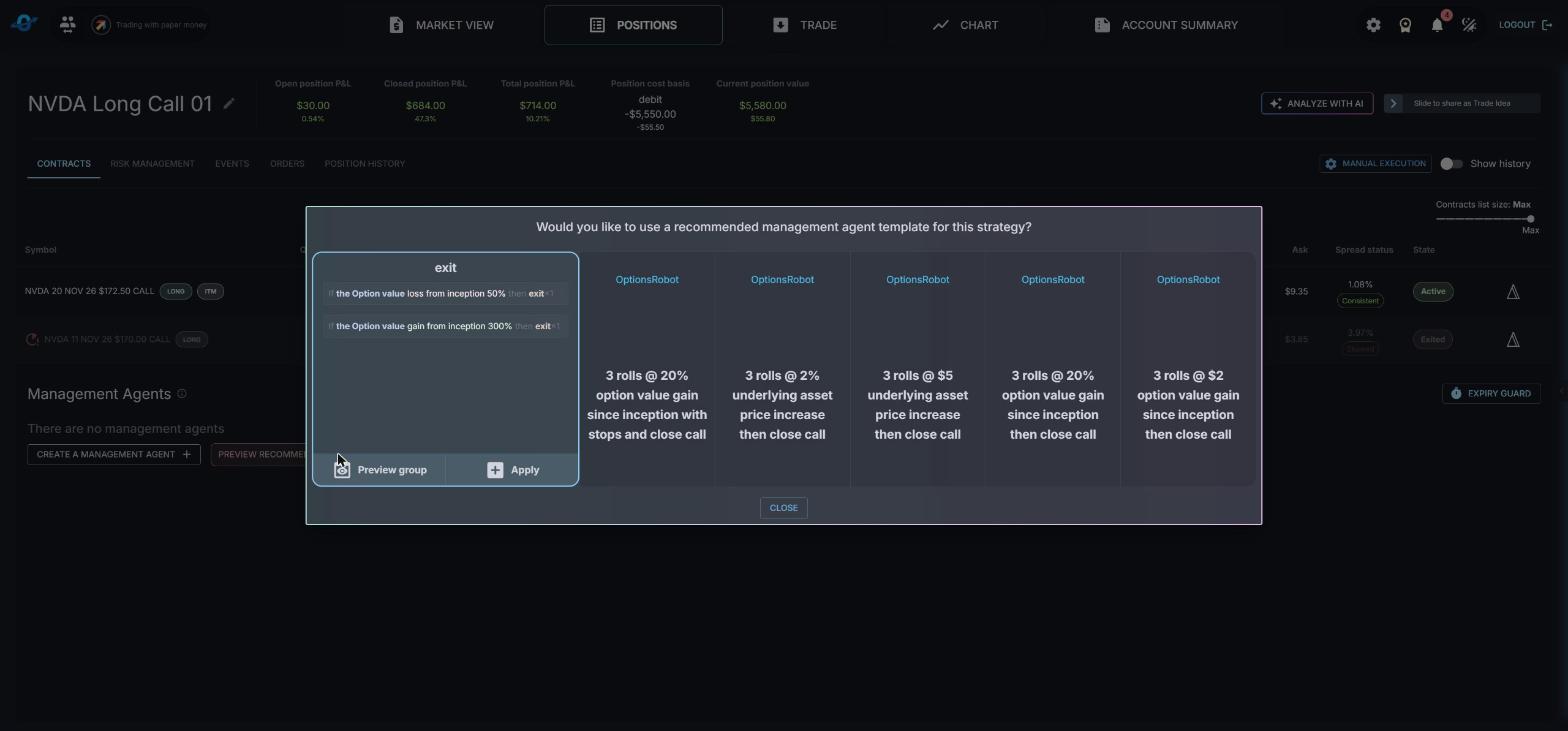
- Open a position and click Preview recommended management agents.
- Hover a card, then click Apply. Templates change with the strategy: a long call gets roll ladders, an iron condor gets "buy to close when net value is greater than −$1.00".
- If Apply does not go through, click Preview group on the same card, check the diagram, and click Apply at the top right.
- A template is only a starting point. Once applied, every rule can be edited (pencil), paused or deleted, and you can add your own. Select it, apply it, then make it yours.
Build or edit one yourself
Click the pencil on any rule, or Create a management agent.
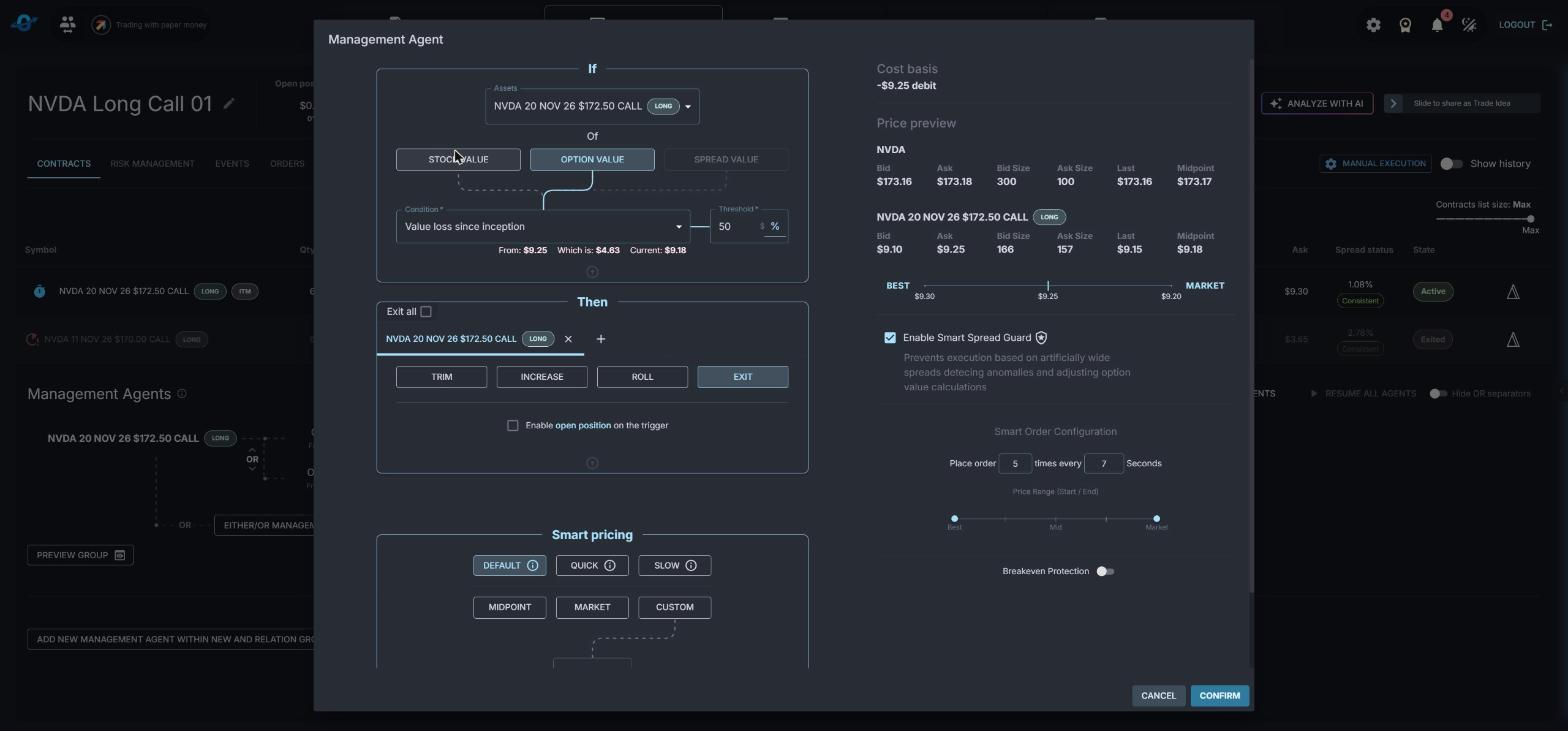
- 1Watch what? Stock value, Option value or Spread value.
- 2Condition and threshold. For example "Value loss since inception, 50%". The line below shows the exact trigger price.
- 3Then. Trim, Increase, Roll or Exit. Tick Exit all to close every leg.
- 4Smart pricing. How patient the agent is when filling (table below).
- 5Smart Spread Guard. Blocks the trigger when a spread is unusually wide, so one bad quote cannot set it off.
- 6Smart order configuration. "Place order 5 times every 7 seconds", stepping from best price toward market in intervals, a little at a time.
- 7Breakeven protection. Stops a rule from closing a position below where you entered it.
| Condition | Plain English |
|---|---|
| Value gain since inception | Up X% (or $X) from what you paid |
| Value loss since inception | Down X% from what you paid: a stop loss |
| % drawdown from a max gain | Gave back X% from its best level: a trailing stop |
| Delta greater / less than | The option became more or less sensitive to the stock |
| Stock moves up / down from acquisition price | The stock moved X% from where it was when you entered |
| Smart pricing | Use it when |
|---|---|
| Default | Most of the time. Starts near best price and walks toward market. |
| Quick | Getting filled matters more than a few cents, as with stop losses. |
| Slow | You can wait for a better price, as with take-profits on liquid names. |
| Midpoint / Market / Custom | Fixed styles: halfway between bid and ask, immediate, or your own limit. |
| Credit / Debit / Even | Shown for rolls: set the net price of the swap. |
Rules for spreads (more than one leg)
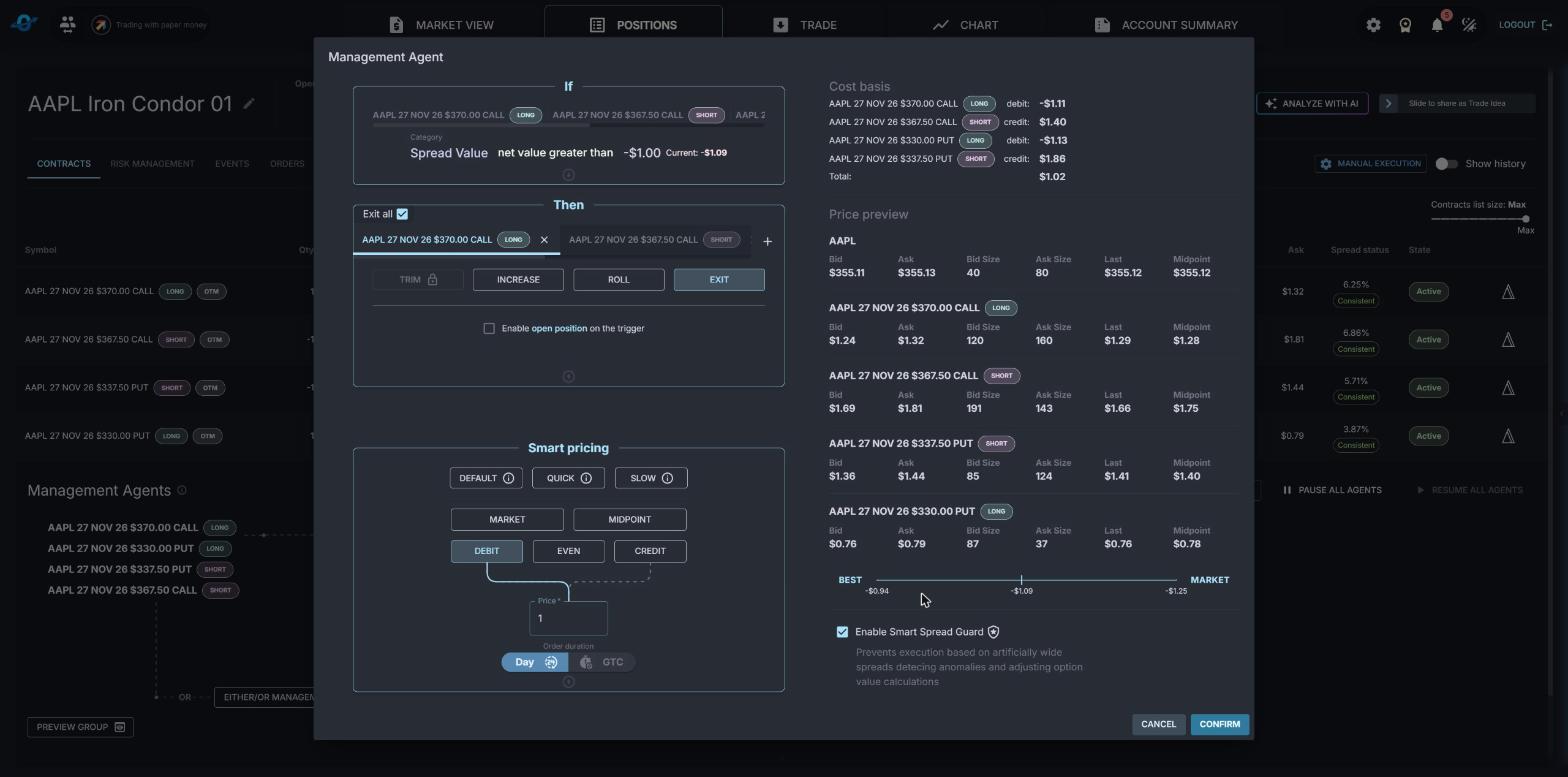
On a spread, such as an iron condor or a vertical, a rule has to know which legs it watches and which legs it trades. You set these in two places.
- Pick the trigger legs at the top. In the If box, use the Assets selector at the very top to select each leg of the spread. Once every leg is selected, Spread value becomes available, so the rule can watch the spread's combined net value rather than one option.
- Pick the legs to trade in Then. Each leg you want to act on appears as a tab in the Then box. Use + to add a leg and × to remove one, or tick Exit all to act on every leg at once. This matters for rolls: select only the legs you want to roll, then choose Roll.
- For pricing, spreads use Debit, Even or Credit to set the net price of the whole order.
OR, AND and nested rules
- OR (stacked rules in one group): whichever fires first wins, and the others in that group stand down. Use it for take-profit OR stop-loss.
- AND (Add new management agent within new and relation group): a separate group that runs alongside the first.
- Nested agents (Add nested Agents): rules that switch on only after the parent rule fires. This is how roll ladders work: roll, then watch the new contract, then roll again.
Gap protection (gap override)
Stocks sometimes jump overnight, straight past several of your roll levels at once. Without protection, your plan would roll up just one level and then have to catch up. With gap protection on, the agent reads how far the stock has gapped, finds the highest roll level it has passed, and rolls you straight to that level's at-the-money strike. It works on the downside too, for bearish positions.
- Build your first roll rule, for example: IF Stock value is greater than $399.85 → THEN Roll to the at-the-money strike.
- Add a second roll rule at the next level up, for example greater than $414, with the same roll setup.
- When you create it, the app asks whether to activate the gap override. Click Activate and confirm. Add as many levels as you like, plus stops and a final exit at the top.
Example from the video (MU): roll at $399.85, roll at $414, roll at $435, exit above $437, with stops under each level. If MU opens above $414, the agent skips the $399.85 roll and goes straight to the $414 at-the-money strike. Watch the 4-minute video.
Expiry Guard
Roll, trim or exit by hand
Agents are optional. You can always act yourself.
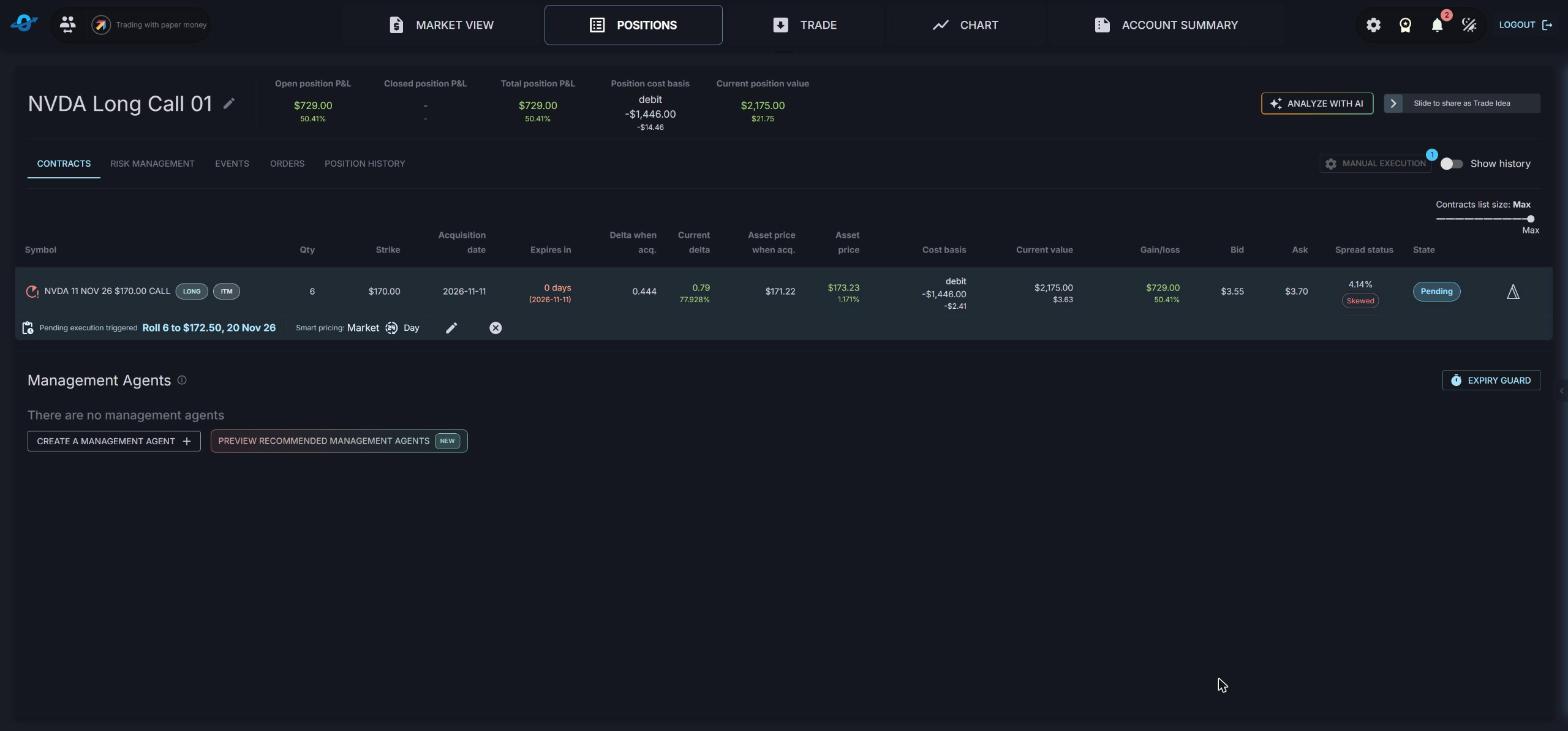
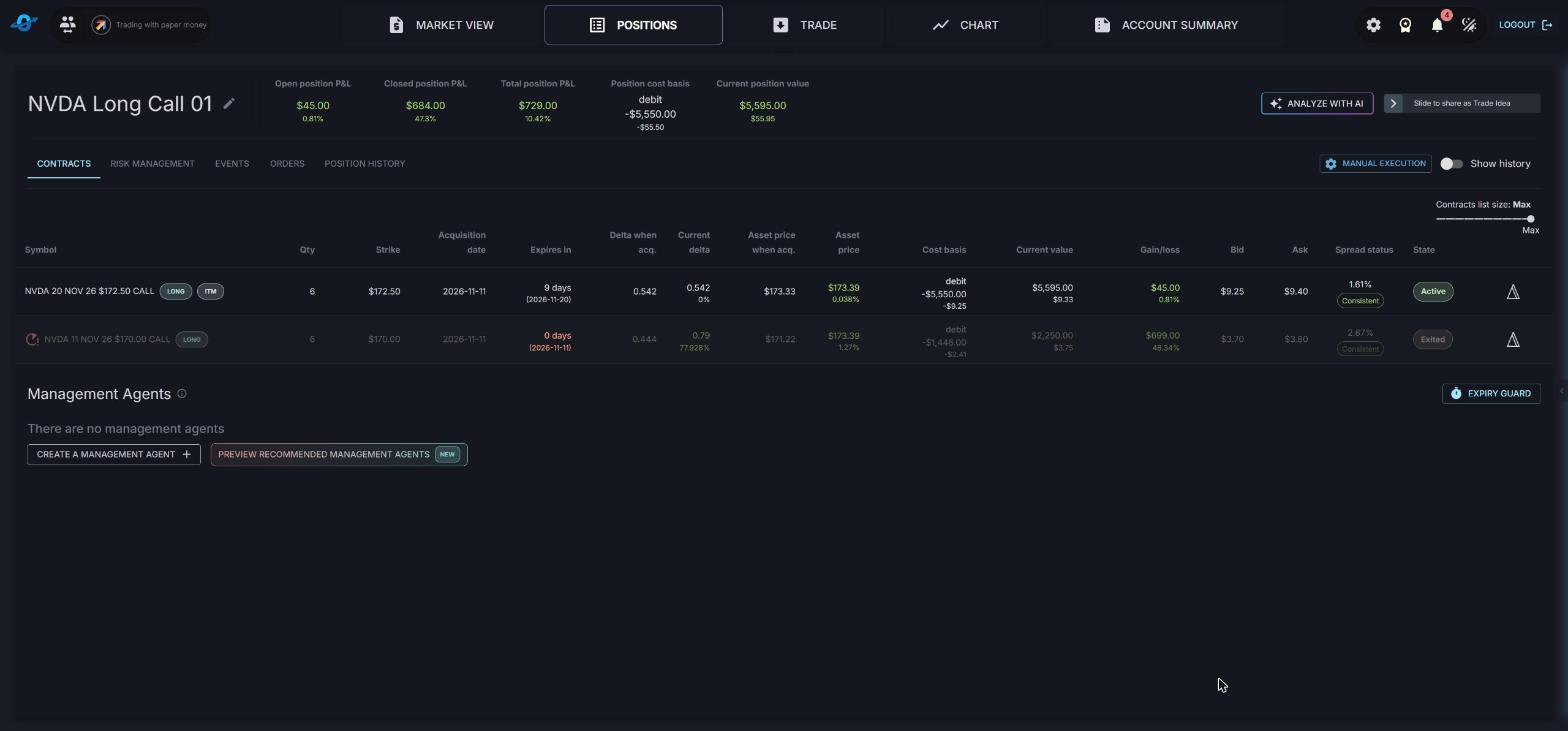
On any position, click Manual Execution (top right of the Contracts tab). Here is an example roll: six NVDA calls expiring today, moved out to next week.
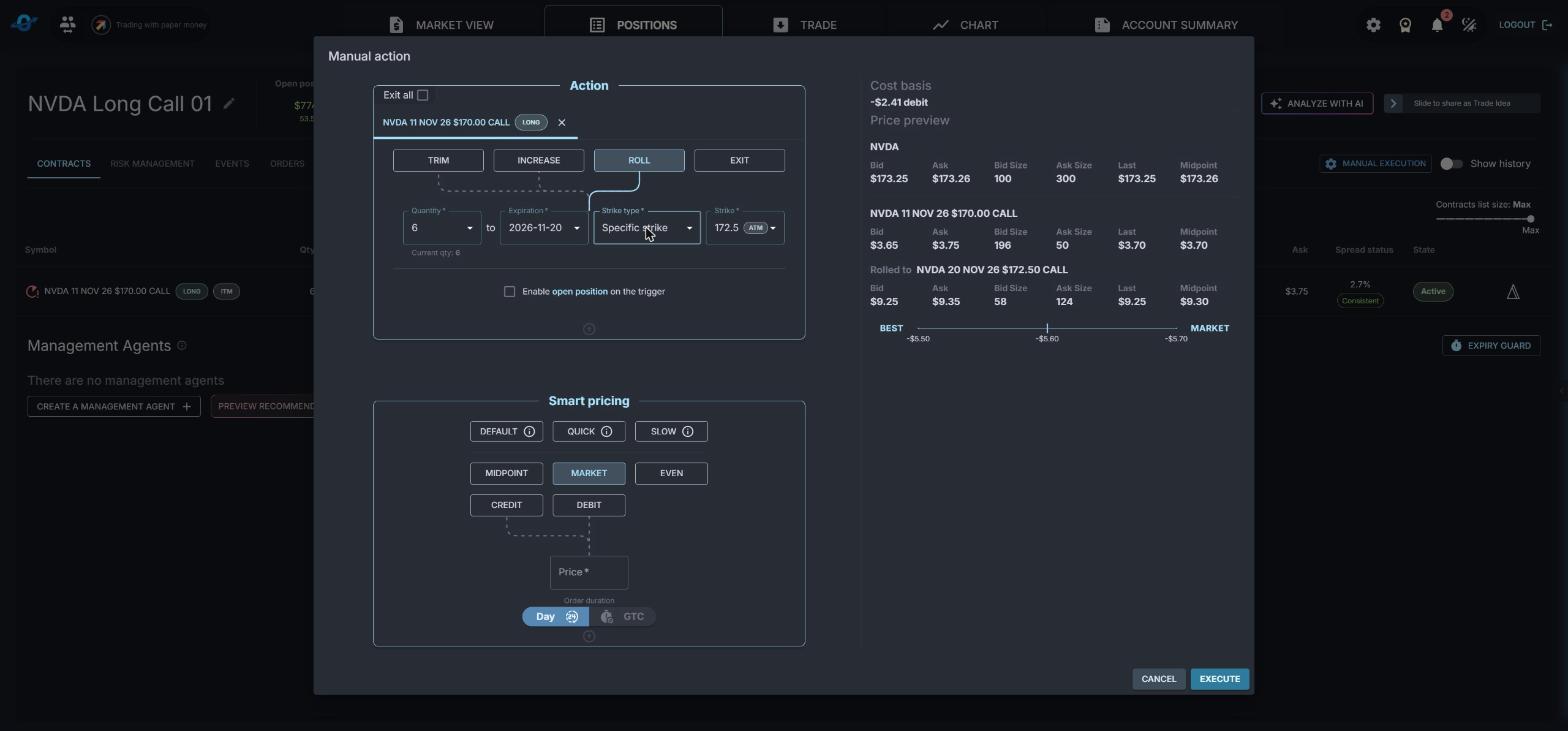
- 1Pick the action. Trim (sell some), Increase (buy more), Roll or Exit.
- 2Roll target. Quantity → new expiration → strike type (specific strike, ATM, or $ above or below the stock).
- 3Smart pricing. Same choices as agents, plus Credit, Debit and Even for the net price.
- 4Price preview. Live quotes for the old and new contract, and the net cost of the roll.
- 5Execute. Sends the order. It sends right away, so check the details first.
Option chain and simulator
For when you want to place a trade now, without a trigger.
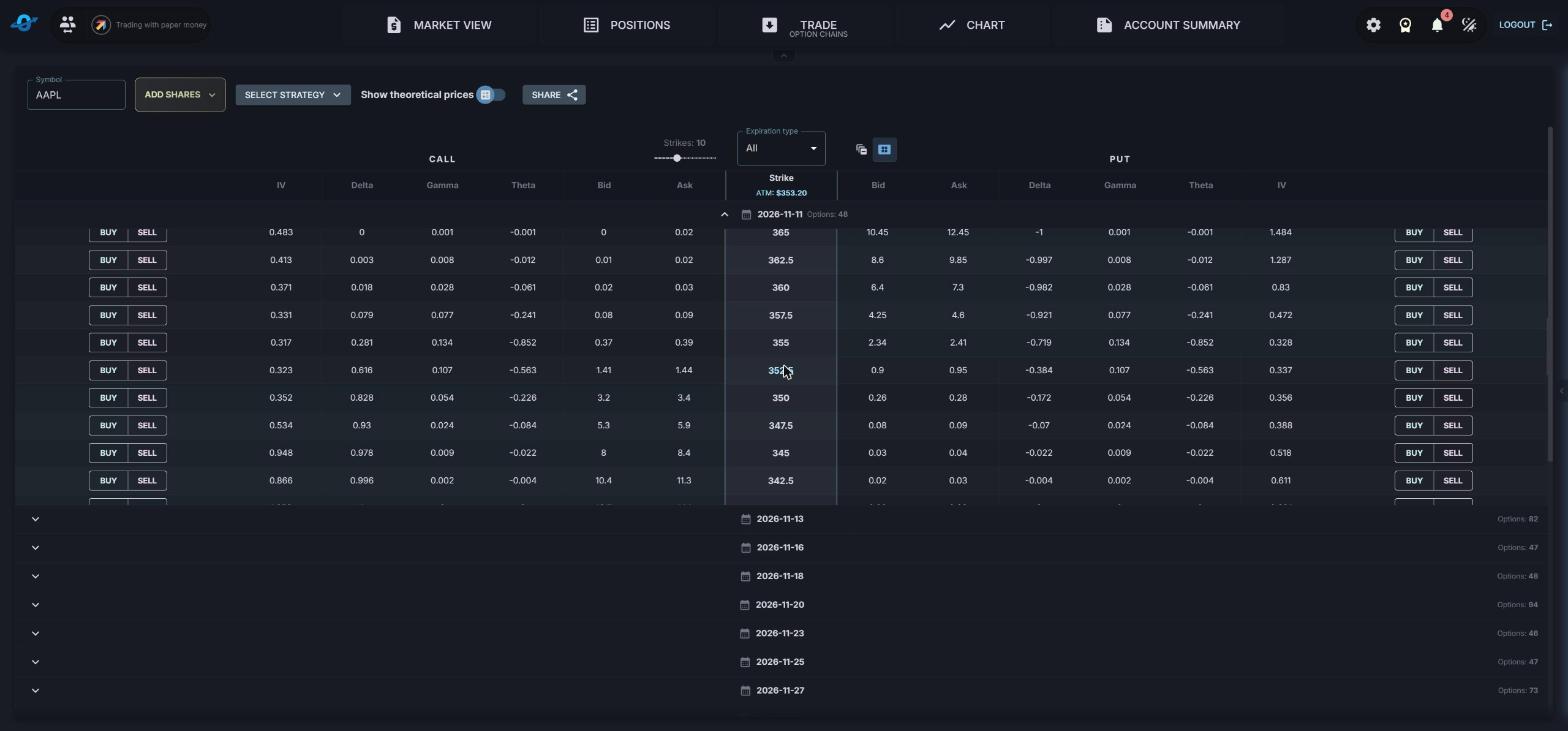
- Select Strategy builds multi-leg trades for you.
- Strikes slider: how many strikes to show around the current price.
- Expiration type: All, weekly, monthly, and so on.
- Show theoretical prices and Share sit at the top.
Trade ideas and copy trading
Agents built by the OptionsRobot team, ready to copy.
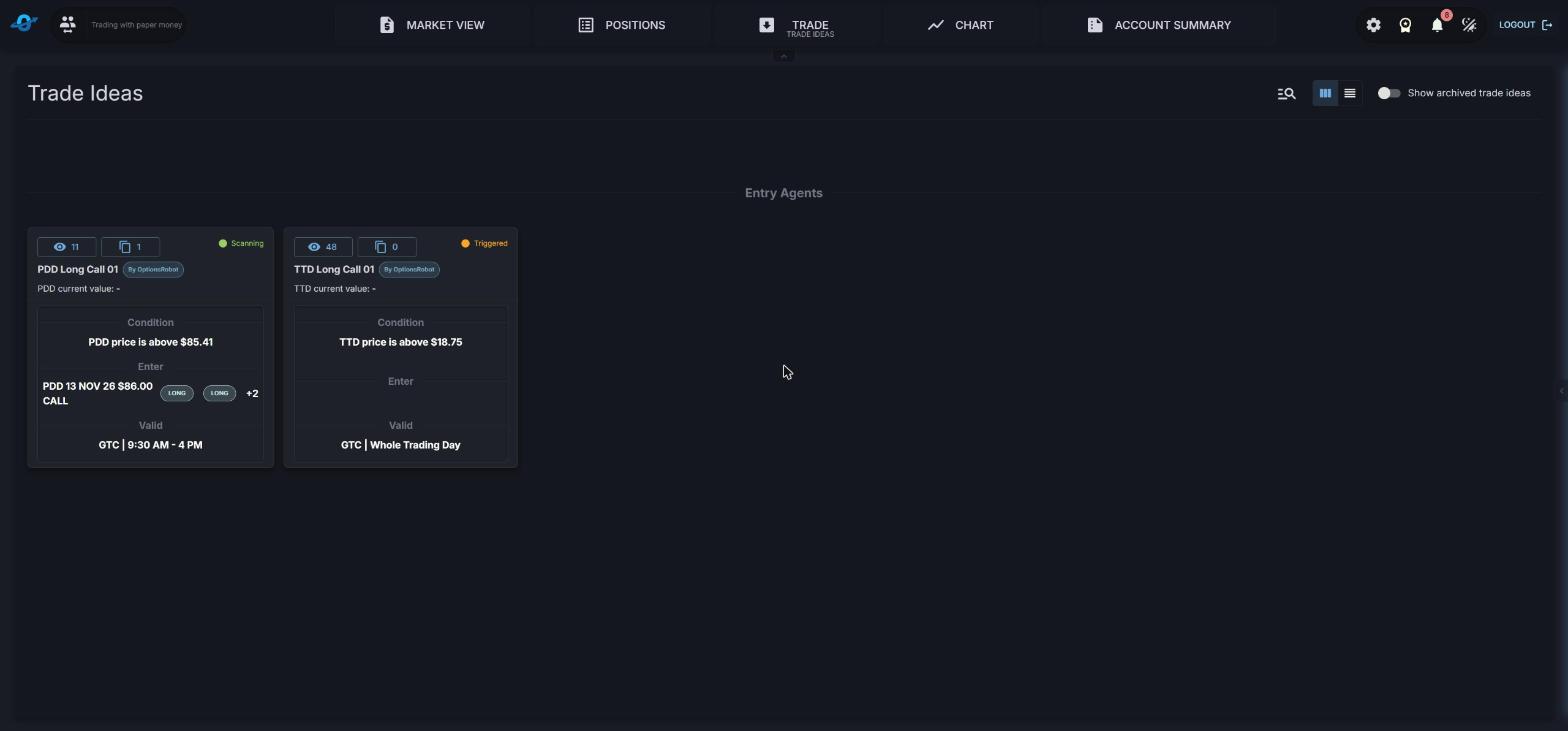
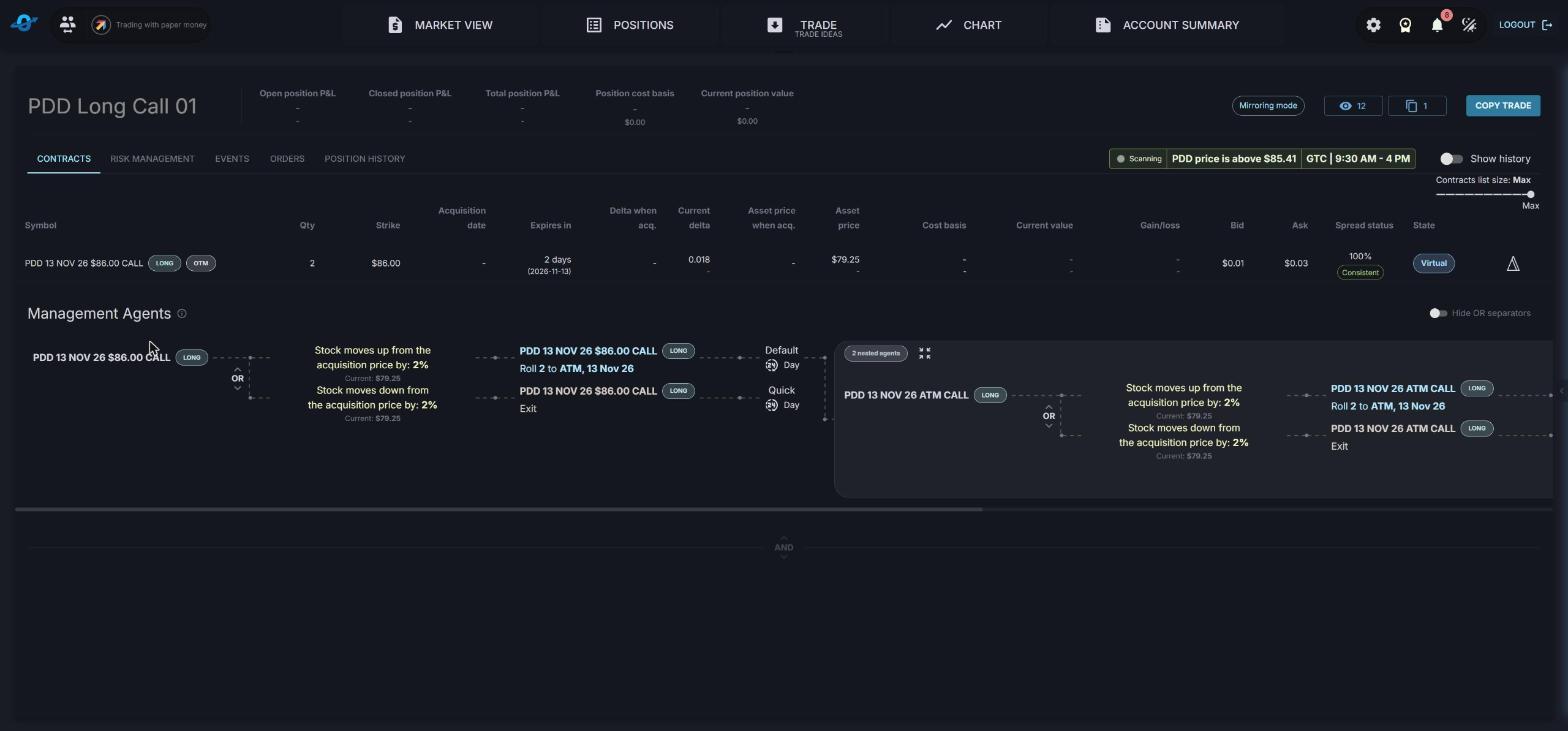
- Open an idea and read the trigger and the management rules.
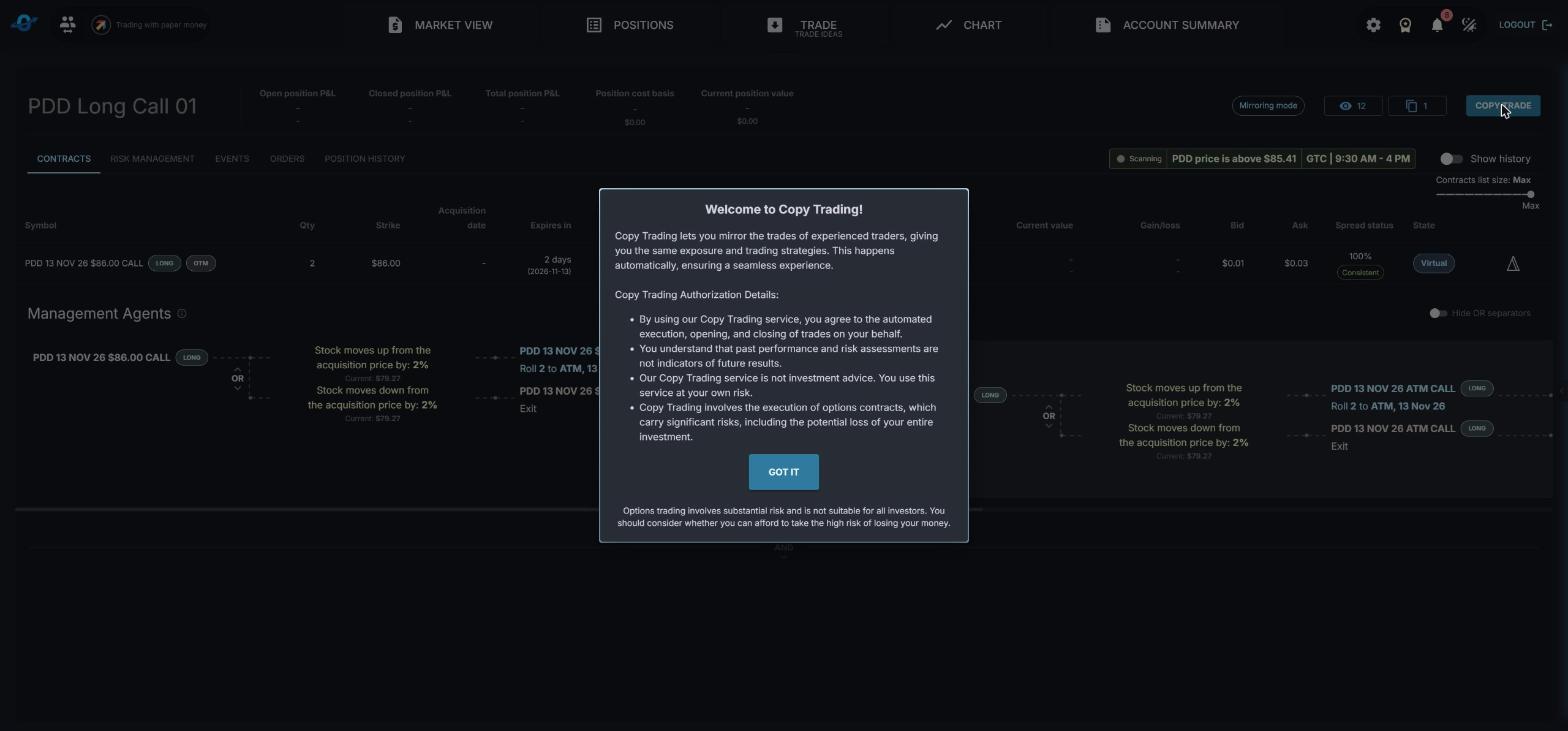
- Click Copy Trade. The first time only, a Welcome to Copy Trading notice explains that copied trades open and close automatically on your account. Read it, then click Got it.
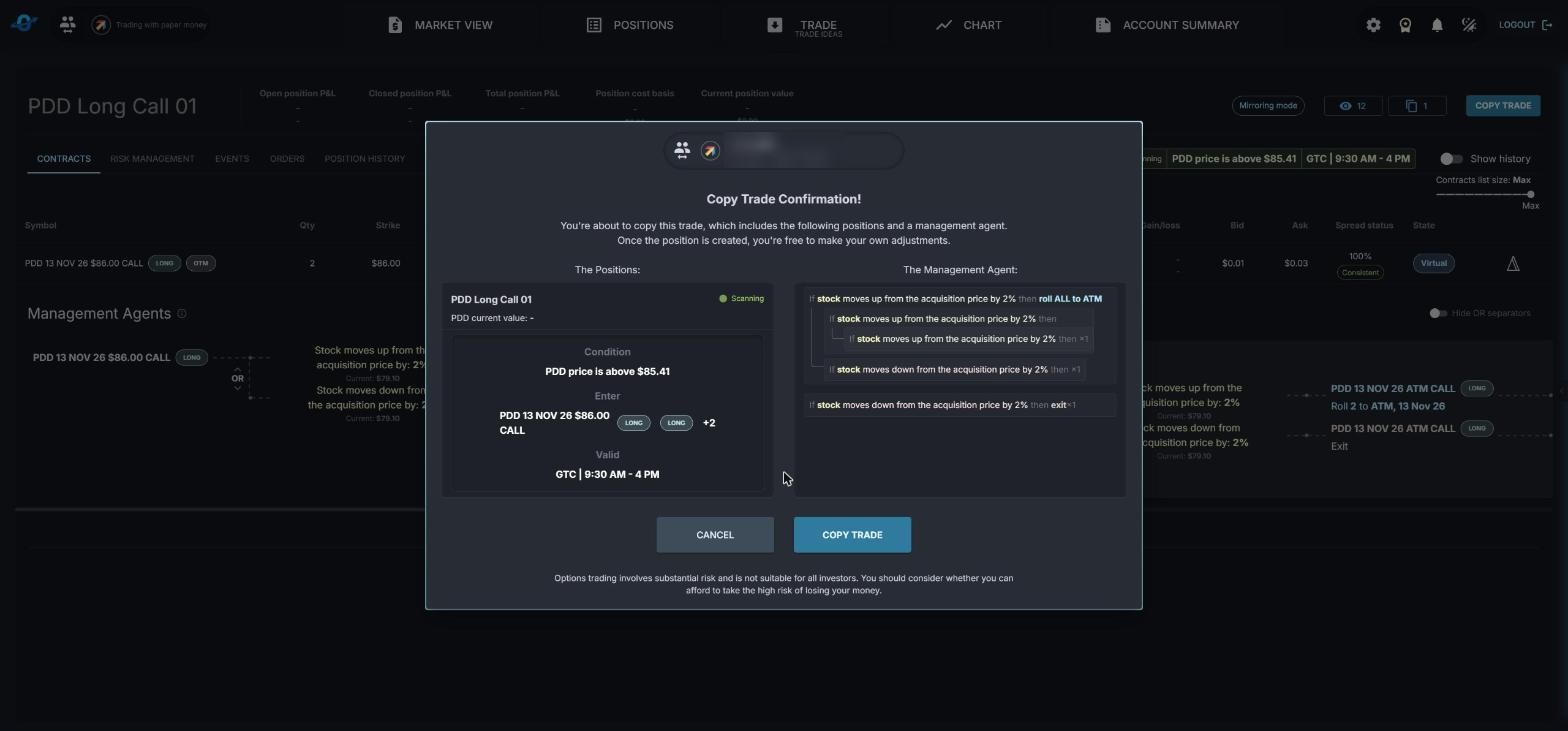
- A Copy Trade Confirmation appears. Check three things: the account at the top (it should be the one you mean to use), the position and trigger on the left, and the management rules on the right. Then click Copy Trade.
- You land on your own copy of the position. It shows a Linked Trade Idea tag, and its entry agent is Scanning. From here it is yours: edit, pause or cancel it like any other agent.
Quotes, alerts and charts
Research tools that feed your agents.
Price alerts
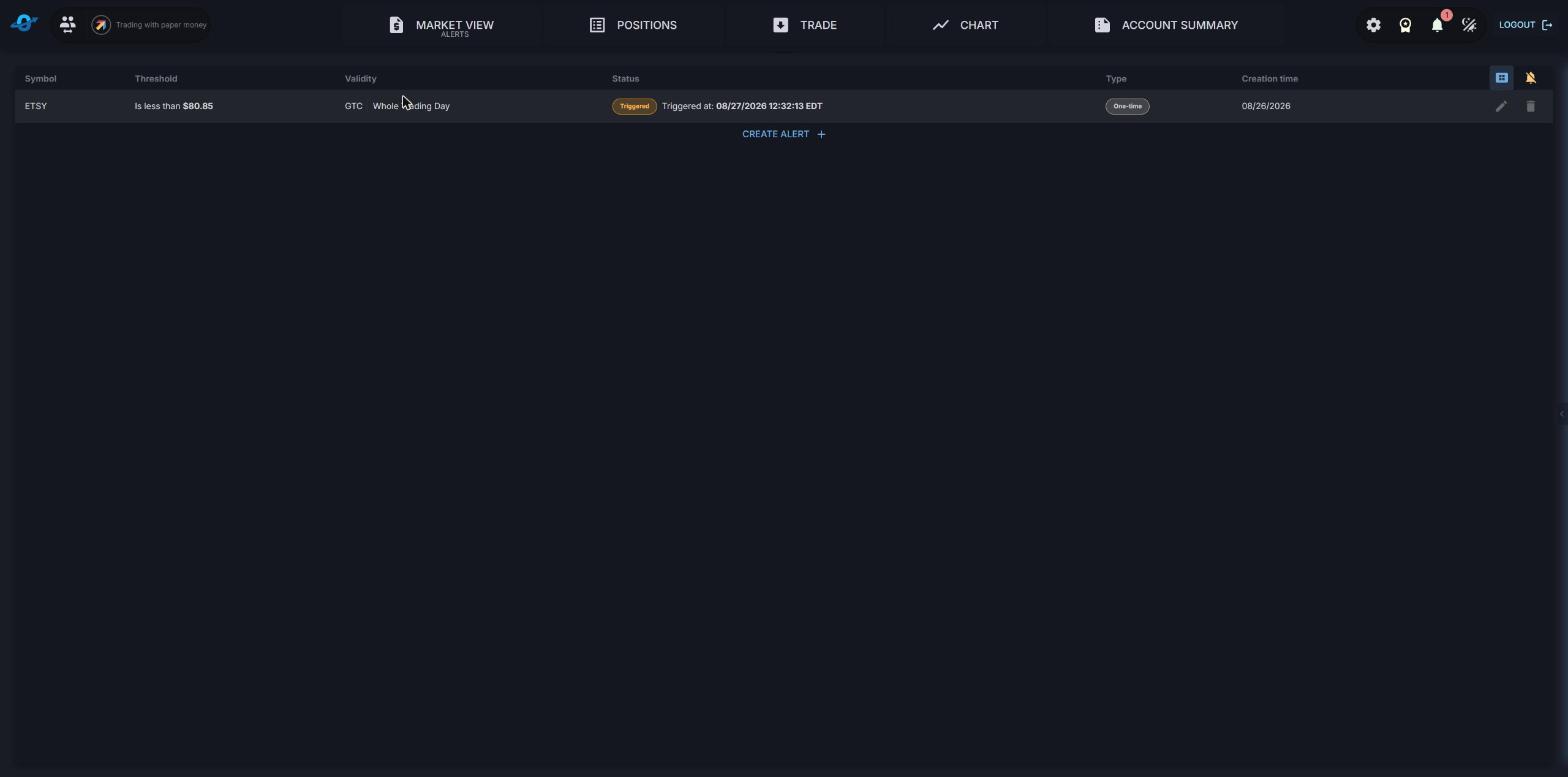
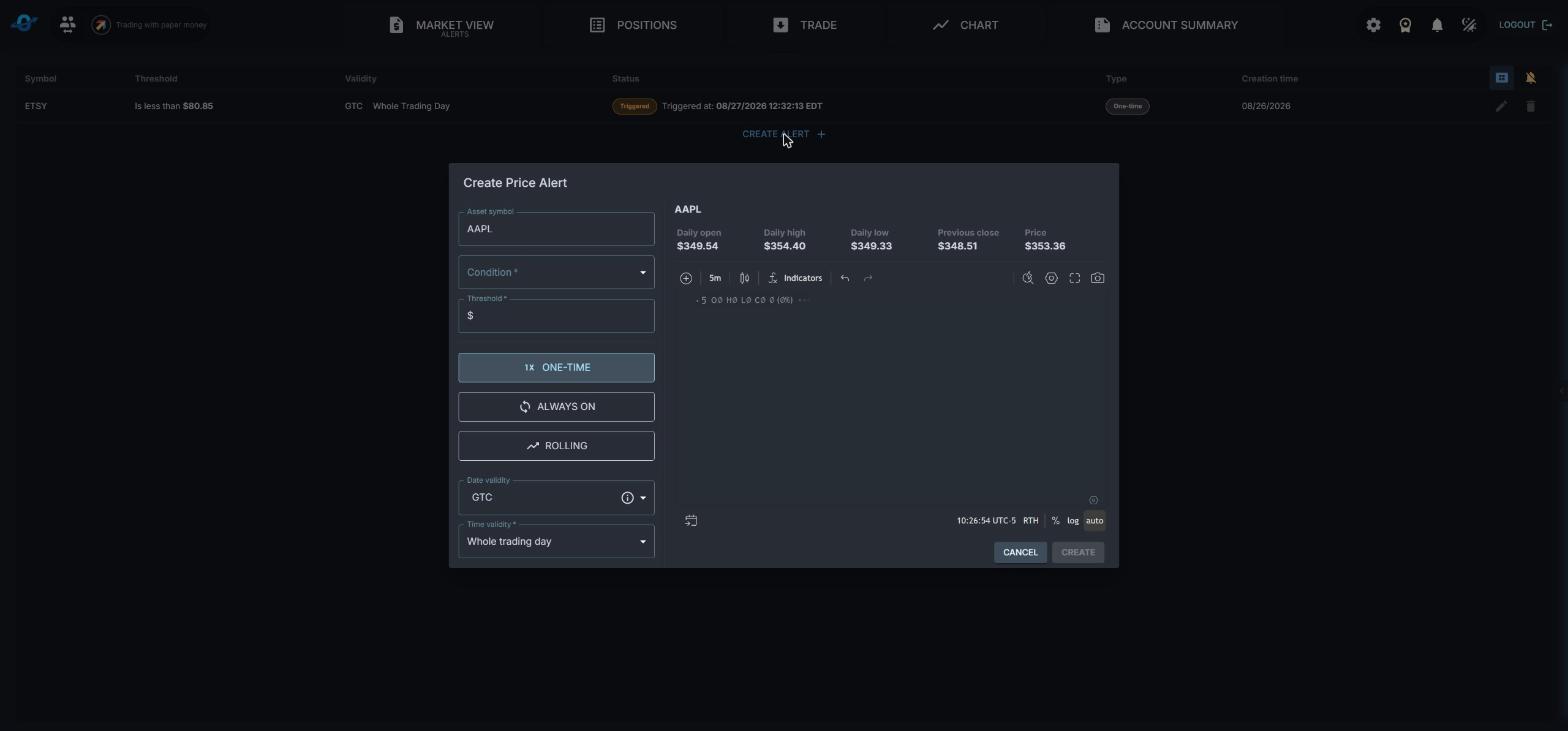
- One-time fires once, then stops.
- Always on fires every time the condition is met.
- Rolling moves its level as price moves.
- Set the date and time validity the same way as agents. The bell-slash icon at the top right mutes alerts.
Chart
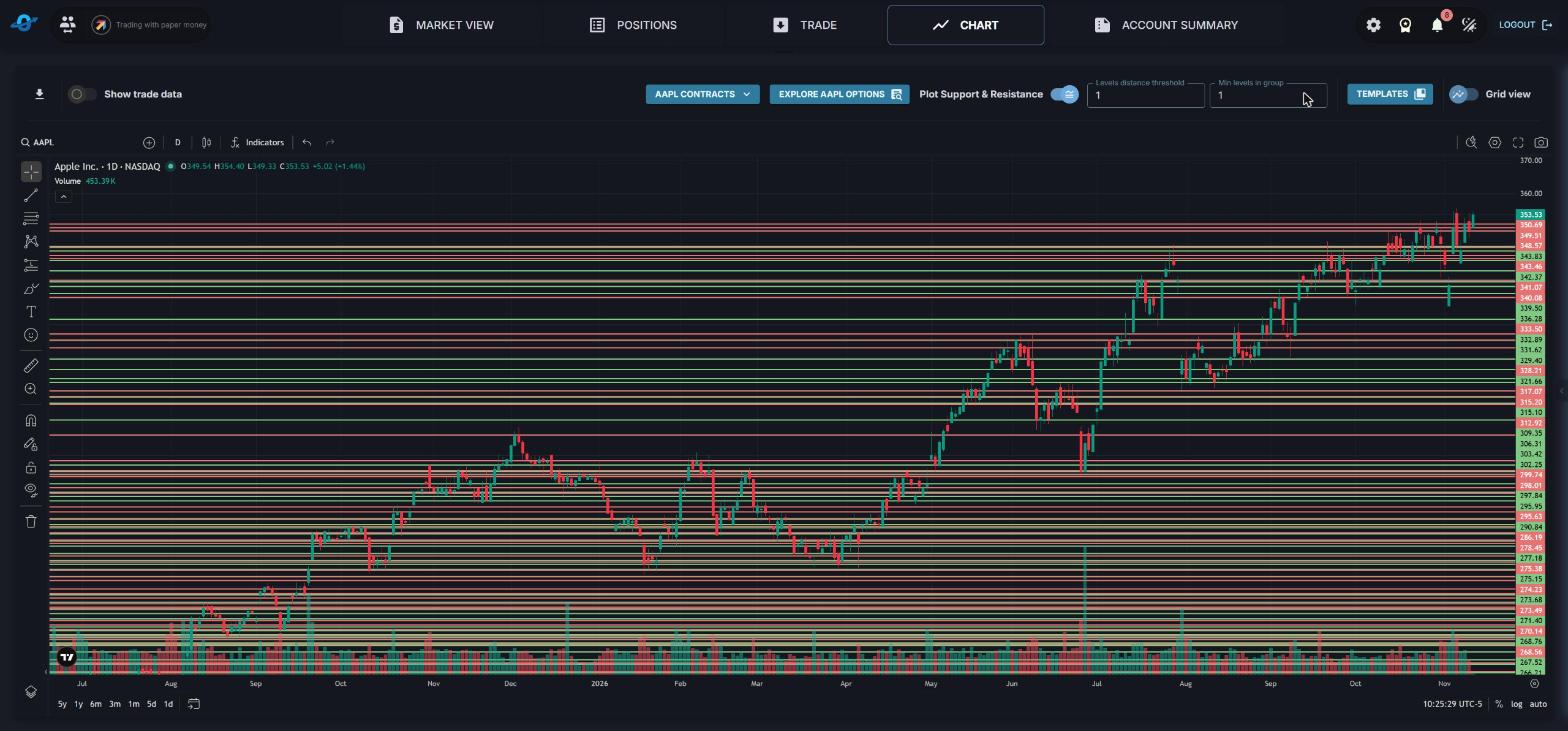
- Show trade data marks your entries and exits on the chart.
- [Ticker] Contracts and Explore [Ticker] Options jump to trading.
- Templates saves chart layouts. Grid view shows several charts at once.
Account summary and notifications
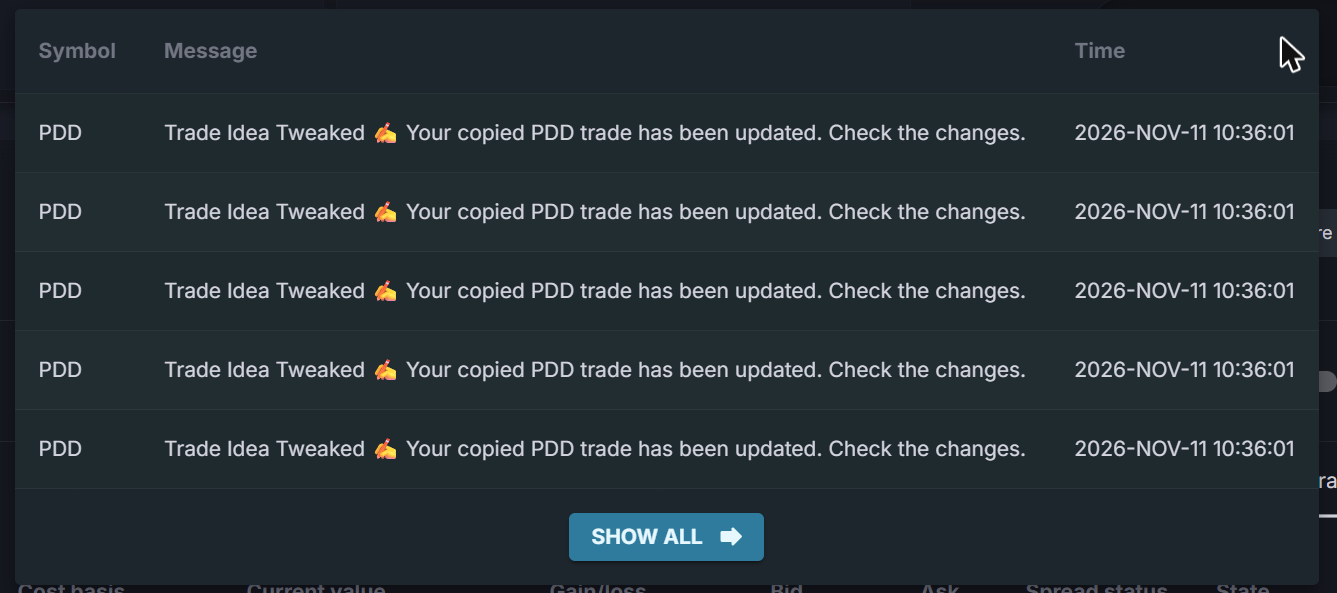
Your balances, history and activity feed.
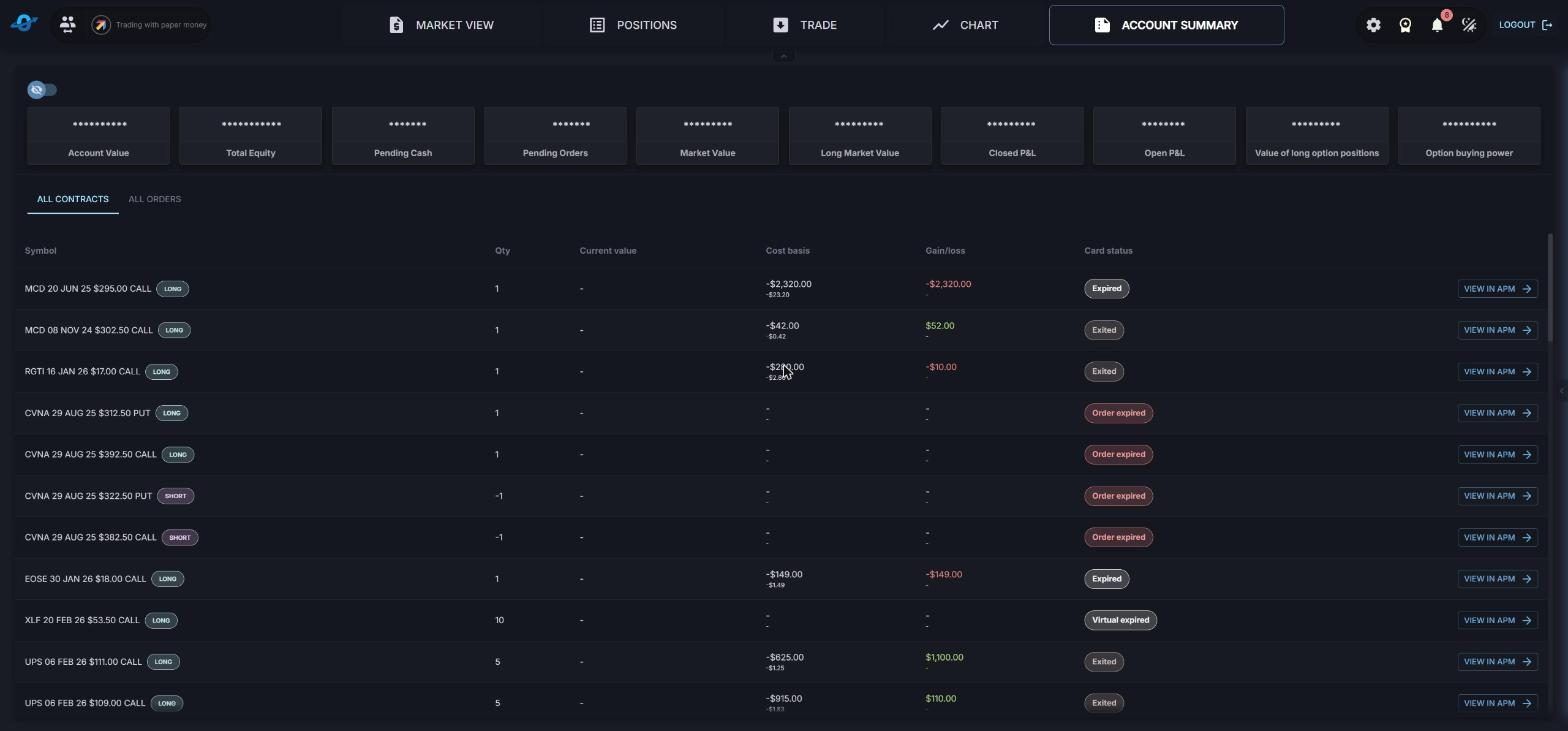
Ten tiles cover Account Value, Total Equity, Pending Cash, Pending Orders, Market Value, Long Market Value, Closed P&L, Open P&L, Value of long option positions and Option buying power. Below them, All Contracts and All Orders list everything you have ever traded. View in APM jumps to the position.
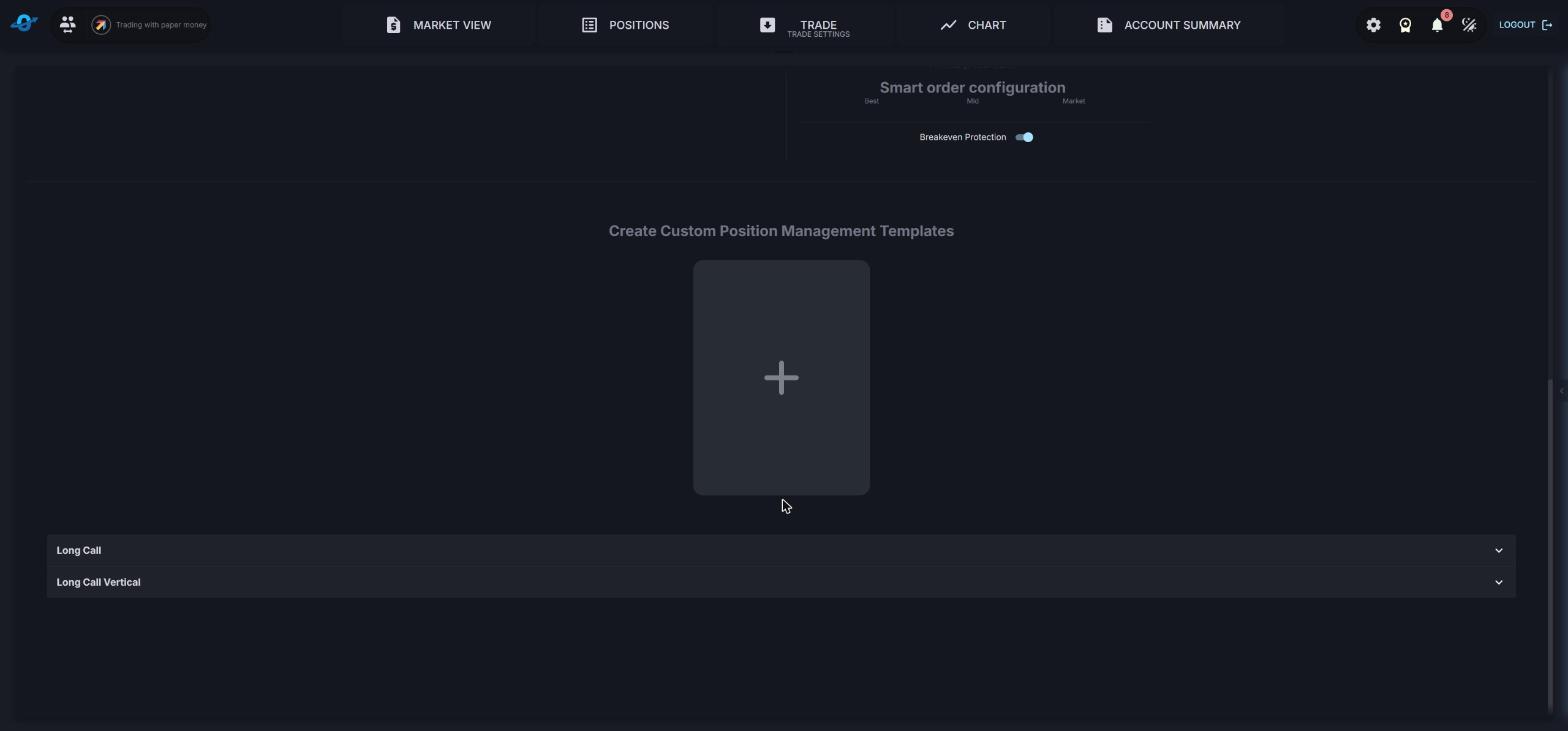
Trade settings
Set your defaults once. Every new order and agent starts from them.
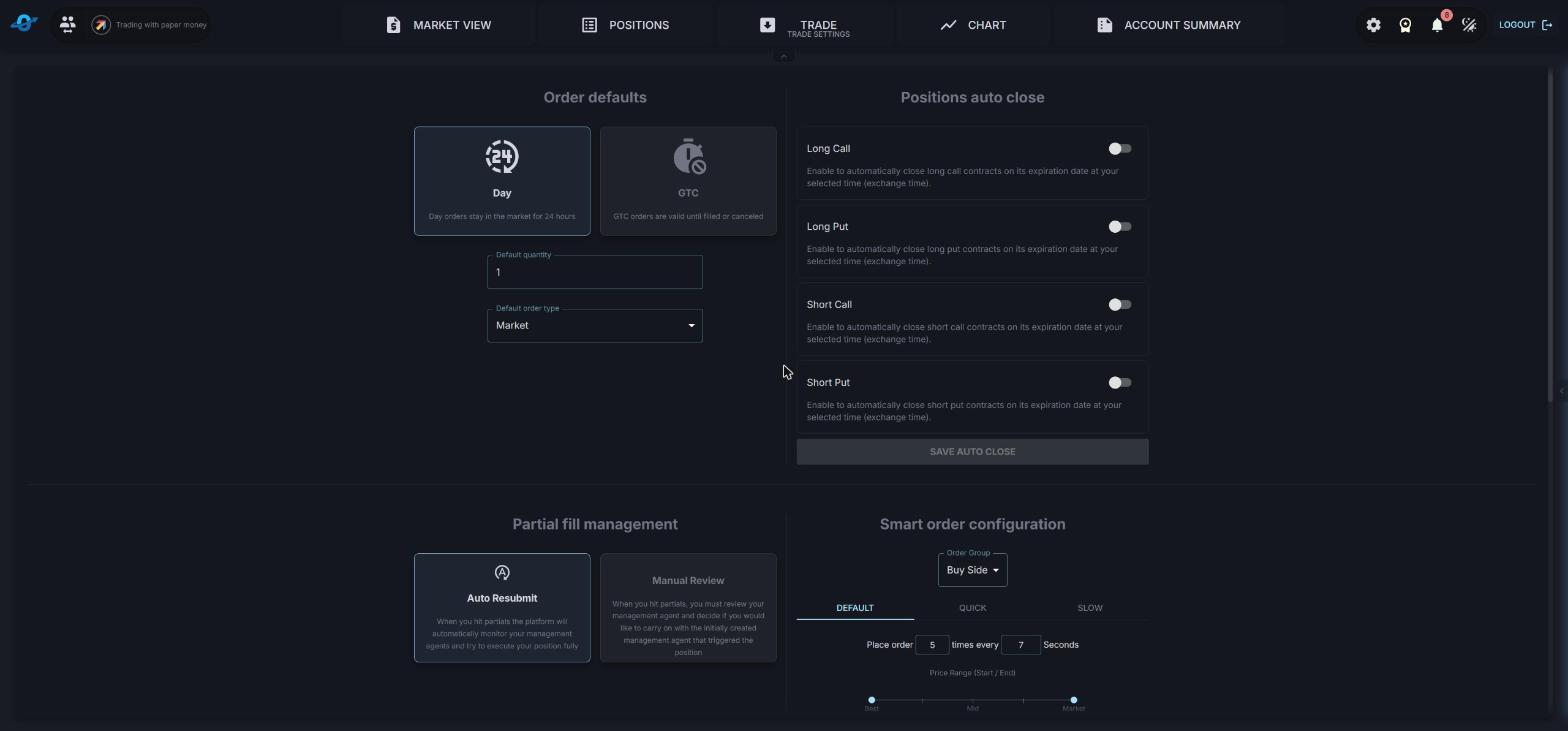
| Setting | What it controls | Our suggestion to start |
|---|---|---|
| Order defaults | Day or GTC, default quantity, default order type | Day, quantity 1 |
| Positions auto close | Auto-close long calls, long puts, short calls or short puts on expiration day | Turn on for all four, then click Save auto close |
| Partial fill management | Auto Resubmit keeps working an order that only partly filled. Manual Review asks you first. | Auto Resubmit |
| Smart order configuration | What Default, Quick and Slow mean for buys and sells: tries, seconds between tries, price range | Leave as is until you have a reason |
| Breakeven protection | Account-wide version of the per-rule switch | On |
| Custom templates | Save your own management templates per strategy, so they appear next to ours | Make one after your first few trades |
Account settings
The gear icon opens Settings: My Account (password, name, phone), Notifications (SMS trade alerts, marked "available soon") and Subscriptions (your plan, trade credits, coupons and Manage subscriptions). The badge icon next to it upgrades your plan.
Glossary
Type to filter. Terms are written for people new to options.
No matching terms.
Common questions
My agent says "Scanning". Is it working?
Yes. Scanning means it is watching for your trigger. It only places an order when the trigger is met inside its scanning window.
How do I stop everything quickly?
Positions → Pause all agents. Nothing new fires until you press Resume all agents. To stop one agent, use the pause icon on its rule or Pause entry agent on the position.
What is the difference between Exit and Trim?
Exit closes the whole leg. Trim sells part of it and keeps the rest.
Why roll instead of exit?
Rolling closes your current contract and opens a similar one at a later date or new strike in one order. Traders use it to lock in gains and stay in the trade, or to buy more time.
Will an agent trade outside market hours?
Agents act during the hours you set in Time validity, for example 9:30 AM to 4 PM or the whole trading day. Orders follow normal market hours at your broker.